

- Learn how to pair Beats earbuds with iOS, Windows, & Android devices.
- Diagnose common Beats connection issues.
- Tips for pairing using the Beats app and Google Fast Pairing Service.
- Beats headphones not charging correctly? Here’s how to fix it!
This guide will demonstrate how to connect Beats earbuds to various devices and provide troubleshooting tips for any issues.
The following devices are covered:
How To Put Beats In Pairing Mode
- Turn off your Beats earbuds by holding the power button until the LED light turns off.

- Hold the power button for five seconds until the LED light starts blinking.
- Remain holding the power button until the LED light alternates between red and white, indicating that your earbuds are now in pairing mode.


Once in pairing mode, commence the below steps to connect to your chosen device.
How To Pair Beats Earbuds
With The Beats App
The Beats app (iOS & Android) makes pairing a breeze. Ensure your Beats earbuds are in pairing mode and follow these steps:
- Download and install the Beats app on your iOS or Android device.
- Open the Devices tab and tap the “+” icon to add a new device.
- Select your Beats earbuds from the list of available devices.
- Follow the on-screen instructions to complete the pairing process.


Android devices must be compatible with the Android 6.0 or higher operating system to use the Beats App.
If the Beats app method doesn’t work, or you wish to pair manually, follow these steps for all devices:
With Windows
To pair Beats earbuds with a Windows device, follow these steps:
- Ensure your earbuds are turned on and in pairing mode.
- Open Settings on your Windows computer and click on Devices.
- Click on Bluetooth & Other Devices and turn on Bluetooth.
- Select to Add Bluetooth or other device.
- Select your Beats earbuds from the available devices list and click Pair.


With Mac
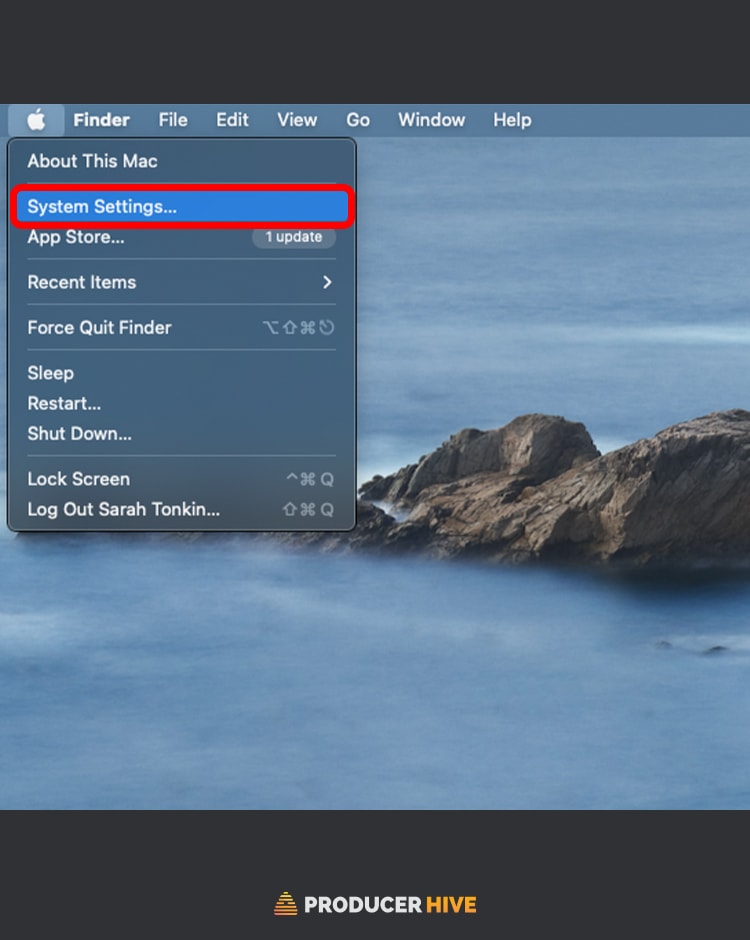
To pair your Beats with an iMac or MacBook, follow these steps:
- Turn on your earbuds and put them in pairing mode.
- Open System Preferences on your Mac and click on Bluetooth.
- Turn on Bluetooth and select your Beats from the list of available devices.

With iPhone/iPad
Connecting to iPhone and iPad is the same process. To pair Beats earbuds with an iOS device, follow these steps:
- Ensure your earbuds are switched on and in pairing mode.
- Open Settings and select Bluetooth.
- Turn on Bluetooth and wait for your earbuds to appear in the list of available devices.
- Select your Beats earbuds from the list and tap on Connect.


With Android
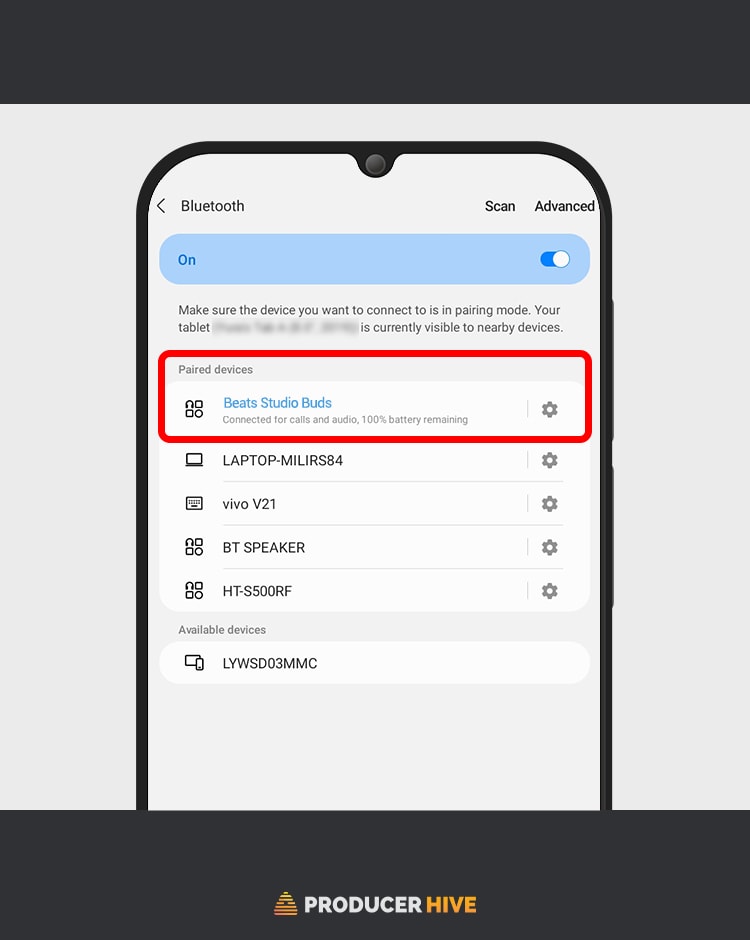
Follow these steps to pair your earbuds with an Android device:
- Ensure your earbuds are in pairing mode.
- Open the Settings menu and select Connected Devices.
- Turn on Bluetooth.
- Select your Beats earbuds under Available Devices.
- Your earbuds will appear in the Connected Devices menu.


If it falls to pair automatically, try these steps:
- On your device, go to Settings > Security & Location > Location.
- Enable Use location.
- Open the Beats app.
- Open the menu and select App Settings.
- Select Settings > Permissions, and ensure Location is turned on.
Ensure your phone uses Android 6.0 or higher, as other versions won’t be compatible.
Pairing With Android Using Google Fast Pair Service (GFPS)
Google Fast Pair is a feature that helps you quickly and easily connect to your Android device using Bluetooth and location data to find nearby devices. To connect using GFPS, follow these steps:
- Make sure your Beats earbuds are turned on and in pairing mode.
- Ensure that your Android device is running Android 6.0 or later and has Google Play services version 11.7 or later installed.
- Turn on Bluetooth.
- Tap to connect your earbuds in the list of available devices.
- A notification will appear on your Android device if your Beats support Fast Pair.
- Tap on the notification to complete the pairing process.
Powerbeats not charging on one side? Here’s how to fix it.
Beats Earbuds Troubleshooting Guide
If you’re having issues connecting, try some of these quick fixes:
Check The Distance From Your Device
This is an easy one, but make sure your Earbuds are within pairing distance from your PC, Mac, iOS, or Android device. Simply moving within range can trigger them to connect.
Reset Your Earbuds
Sometimes, all it takes is a quick reset to get things working. To do this:
- Hold down the power button and the volume down button for 10 seconds.
- When the LED flashes, let go, and the earbuds will force a reset.
Your earbuds will now be ready for the pairing process.
Check Your Earbuds Aren’t Connected To Another Device
If your Earbuds are already connected to a device, they won’t be able to connect to anything else.
Remove them from the device they are already connected to and try again. They will now be able to pair with your preferred device.
‘Forget’ Your Earbuds
Forcing your device to ‘forget’ your Earbuds means you can attempt to reconnect from scratch, which will often rectify the issue and allow pairing to happen. To forget your earbuds, follow these instructions:
iOS
- Open ‘Settings’ and select the Bluetooth menu
- Locate your Earbuds, and select ‘Forget This Device’
Mac
- Hit the Apple logo in the top left of the screen
- Select System Preferences and then ‘Bluetooth’
- Select your Beats, click the X followed by ‘Forget This Device’
Windows
- Search for settings and select Bluetooth & Devices.
- Find your Earbuds, right-click, or select the three dots next to the buds and hit ‘Remove Device’.
Android
- Swipe up from the bottom of the screen and select the Settings icon
- Tap ‘Connected Devices’ and then ‘Connection Preferences’ and ‘Bluetooth’
- Find the device name and select ‘Forget’ or ‘Unpair’


