- Did you know AirPods can be connected to a PC?
- Find out how to link your AirPods to your Windows device
- Use our troubleshooting guide to diagnose connection issues
- Also, check out our post on how long AirPods last
To the horror of many Apple fanatics, AirPods can be connected to PC and Windows devices.
While it isn’t as straightforward as connecting your AirPods to an iPhone, it only takes a few steps.
We’ll take you through exactly how to connect your AirPods to your PC and give you everything you need to know.
How To Connect Your AirPods To PC
Here’s how to connect your AirPods to your PC. First, ensure your PC/laptop is powered on and your AirPods are charged.
After that, place them in their case and follow these eight simple steps:
- Put your AirPods into pairing mode.
- Open the Start menu on your PC.
- Select ‘Settings‘ from the menu.
- Click on ‘Bluetooth & Devices’
- Click on ‘Add Device’
- This tab will allow you to add a device. Select ‘Bluetooth’
- Locate your AirPods on your device list and click on it.
- Wait for a message confirming the connection.

Step 1: Put your AirPods into pairing mode. If you’re unsure how to do this, hold down the AirPods button until it flashes orange.
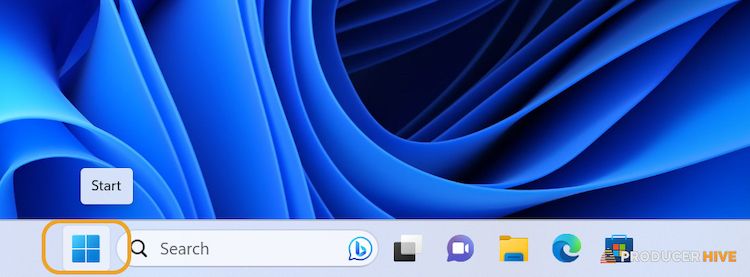
Step 2: Open the Start menu on your PC.
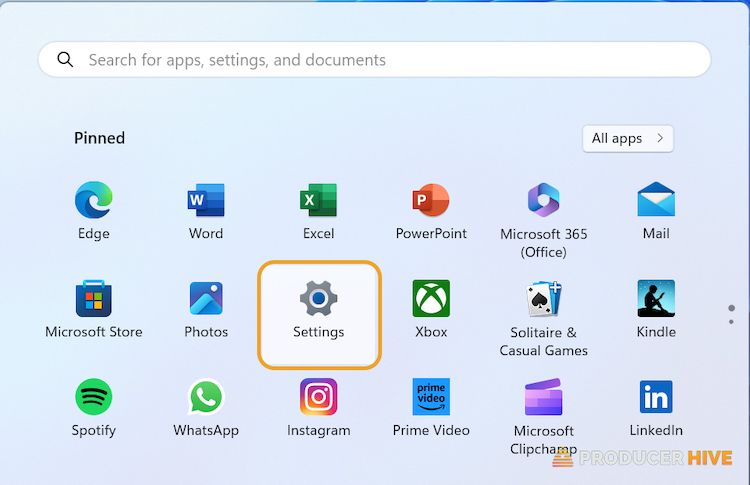
Step 3: Select ‘Settings‘ from the menu.
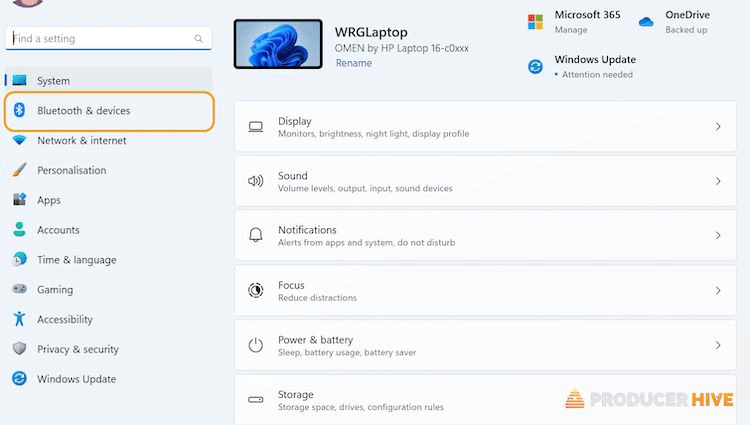
Step 4: Click on ‘Bluetooth & Devices’

Step 5: Click on ‘Add Device’
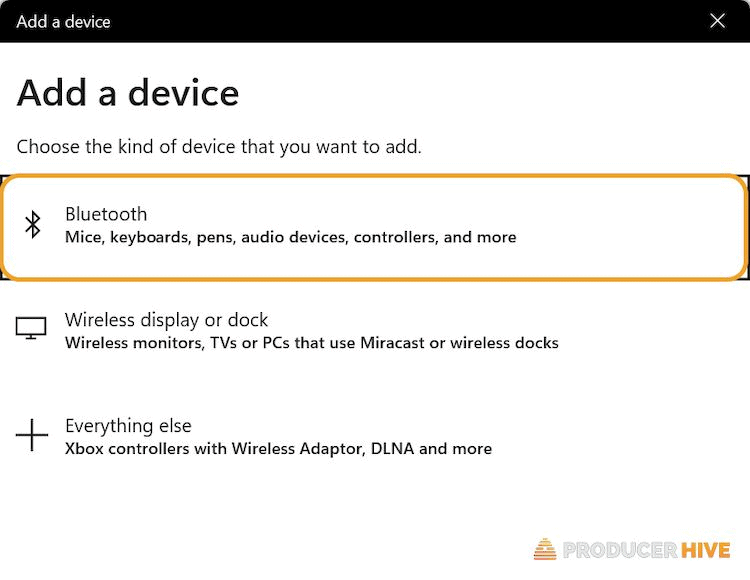
Step 6: This tab will allow you to add a device. Select ‘Bluetooth’

Step 7: Locate your AirPods on your device list and click on them

Step 8: Wait for a message confirming the connection
Now your AirPods are connected, you can enjoy listening to music from your Windows PC or laptop!
Did you know you can pair your AirPods to a different case?
Troubleshooting Guide For AirPods Not Connecting To PC
If you’ve followed our instructions above and are finding you can’t connect your AirPods, follow our separate AirPod pairing troubleshooting guide.
We’ve listed some Windows-specific troubleshooting issues below, though.
Check Your PC Or Laptop Is Bluetooth Compatible
This probably isn’t an issue, as most modern PCs and laptops will be Bluetooth-compatible. However, if you are using an older model, a Bluetooth function may not be built.-in
If you do need to check whether your PC has Bluetooth capability, just follow these steps:
- Open your Start menu
- Type ‘Device Manager’
- Open the Device Manager screen
- Scroll down the list and see if you can locate Bluetooth. If you can’t, your device isn’t able to connect via Bluetooth
If you don’t have the option for Bluetooth, then you can still purchase a Bluetooth adapter that will allow you to connect to your AirPods.
If it is a particularly old model, I’d suggest checking that the adapter will be compatible with your PC tower or laptop.
If you’ve lost your AirPods, here is how to track them.
Reset Your AirPods And Your PC
The odd thing with wireless technology is sometimes a good old-fashioned reset can get it back into working order.
Try resetting your PC first and see if this allows your AirPods to connect when it comes back on. If not, then try resetting your AirPods.
This won’t do any damage or cause any irreversible changes, but it might be enough to get the connection working again.
If you need tips on resetting your AirPods, follow our guide here.
Try One AirPod At A Time
AirPods can work independently of each other, so trying to connect one at a time could diagnose a fault if it lies in just one AirPod.
Follow the same process as you usually would connect to your PC but with one AirPod. If it works, then you know this AirPod has no issue. Repeat this with the second AirPod.
If you find either doesn’t work, it could be a fault with that AirPod (or perhaps something simple, such as one that hasn’t charged fully).
Use The Windows Troubleshooter
One significant advantage a PC or laptop has over an iPhone or iPad is its troubleshooting capability.
In this case, you can run the hardware troubleshooter, which may be able to diagnose why your AirPods aren’t connecting.
To run the hardware troubleshooter, just follow these instructions:
- Press Win+R at the same time
- Type the following in Run: msdt.exe -id DeviceDiagnostic
- Hit enter
- Click ‘Next’ on the Hardware and Devices window
- Follow the onscreen instructions to diagnose the issue
FAQ
Can AirPods Connect To Any Device?
Your AirPods will connect to most devices that are Bluetooth-compatible. They are designed for use with Apple products, so it requires a few extra steps to connect to anything else.
But as their connection is purely based on a Bluetooth signal, you can use AirPods with most of your music-playing devices.
Keep in mind that older PCs (or laptops) may require a Bluetooth adapter to be able to connect to your AirPods.
If you’re wondering, you can connect your AirPods to an Android Device and Chromebook.
Final Thoughts
Hopefully, this has helped you troubleshoot your connection issues, and your AirPods are now working well with your PC or laptop.
If not, it may be a physical fault with the AirPods, so it could be worth visiting the Apple store or contacting their customer support team.
If you haven’t bought your AirPods yet (or have only just bought them), consider whether AppleCare+ would be worth purchasing, as this will cover you for particular defects you would normally have to pay for without the plan.
For more on AirPods, check out: