

- Follow our guide to connect your Galaxy Buds to any device
- Troubleshoot connection issues
- Learn how to connect via the Galaxy Wearable app
- Also, check out our post on how to find lost Galaxy Buds!
If you’ve got a set of Samsung Galaxy earbuds, great choice! They sound fantastic and have become a firm favorite for many people.
However, it can sometimes be a little confusing to connect them to your device. Luckily, we’re here to solve this problem!
So if you’ve just got your Galaxy earbuds out of the box, or perhaps you’re having trouble connecting them, we’ve got the solutions below for all devices.
How To Connect Samsung Galaxy Earbuds To Any Device
Because Galaxy earbuds connect via Bluetooth (in the same way as JBL and Bose etc.), you’ll find that they are compatible with most wireless devices. The connection type remains the same; it’s just the method will differ from device to device.
How To Put Samsung Galaxy Earbuds Into Pairing Mode
First, you’ll want to ensure your Galaxy earbuds are in pairing mode. This means the earbuds are ready to connect to another device via Bluetooth. If they aren’t in pairing mode, then they likely won’t be able to connect.
To put your Galaxy buds into pairing mode, just do either of the following:
Put Galaxy Buds Into Pairing Mode With Their Case
This method is extremely simple. You’ll just need to make sure your case is nearby and ready to use:
- Open the case and place your Galaxy buds inside
- Close the case and wait for around 7 seconds
- Open the case
That’s it! Your Galaxy buds should now be ready to pair.
Put Galaxy Buds Into Pairing Mode Without Their Case
This is arguably a much easier process and won’t require the Galaxy Buds case:
- Place your Galaxy buds in your ears
- Hold both Buds’ touch sensors for 10 seconds.
- They will produce a series of beeps. After a few seconds, the beep will turn into a ‘sonar-like’ pulse.
This distinct, sonar-like ‘beep’ indicates they are now in pairing mode.
How To Connect Samsung Galaxy Earbuds To An Android Device
If you’re an Android user, there are two options for connecting your Galaxy Buds to your phone, via the Galaxy Wearable app or connecting via the traditional Bluetooth method.
Many prefer to use the Wearable app because it allows you to control your buds and other accessories fully, but your buds will function exactly the same whichever method you choose.
How To Connect Galaxy Earbuds To Android Via Bluetooth
Follow these instructions to pair your buds with your device:
- Step 1: Enable pairing mode on your Galaxy buds
- Step 2: Open up the Bluetooth menu on your Android device.
- Step 3: When your buds appear, tap on them and select ‘Pair.’


How To Connect Galaxy Earbuds Via The Galaxy Wearable App
It may seem more convoluted, but using the Galaxy Wearable app is a simple way to pair your Galaxy earbuds. Once you’ve downloaded the app, just follow these steps to connect your buds:
- Place your buds into your case, wait around 7 seconds, and open them to enter pairing mode
- Place your Galaxy earbuds next to your Android device
- Wait for your buds to appear on the screen and tap ‘Connect.’
- If they don’t appear, then launch the Galaxy Wearable app
- Tap on your buds followed by ‘OK’ to continue pairing
Your buds should now be connected!
How To Connect Samsung Galaxy Earbuds To iPhone or iPad
If you think of listening to music on an iPhone, you might immediately think of AirPods. These are Apple’s signature earbuds, and they work great on an Apple device, but because your iPhone runs on Bluetooth, it’s compatible with any Bluetooth earbuds (the same goes for your iPad and Mac).
However, if you prefer to use an app, the Samsung Galaxy Buds app is available from the app store.
How To Connect Galaxy Buds To iPhone or iPad Via Bluetooth
Connecting to your iPhone is quick and easy. Just follow these steps:
- Ensure your Galaxy buds are in pairing mode
- Open the ‘Settings’ app on your iPhone
- Scroll to ‘Bluetooth’
- Locate your buds and tap on their name
This will complete the connection.
How To Connect Galaxy Buds To iPhone or iPad With The Galaxy Buds App
First of all, ensure the app is downloaded and up to date, then follow these instructions:
- Launch the app and select ‘Get Started
- Switch your buds into pairing mode
- Locate your buds on the screen and tap on them
- Wait a few seconds for the pairing to complete
It’s as easy as that!
How To Connect Galaxy Buds To PC & Laptop
If you have a Windows device, connecting your Galaxy Buds is quick and easy. All you need to do is follow this guide:
- Open your PC or laptop Settings menu
- Select ‘Bluetooth’ or ‘Bluetooth and Other Devices’
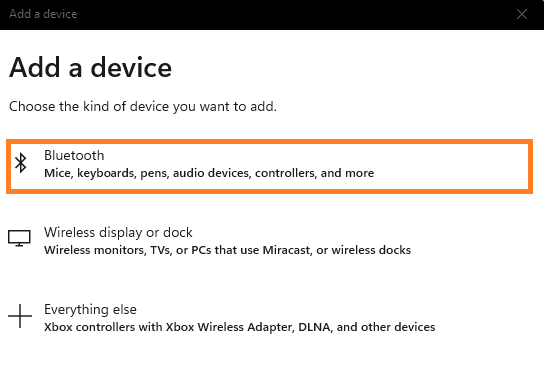
- Click on ‘Add Bluetooth or Other Devices’
- Click on ‘Bluetooth’
- Locate your buds and click on them to complete the connection.

How To Connect Galaxy Buds To Mac
Pairing your Galaxy Buds to your Mac is quick and only takes a few clicks.
Ensure your buds are in pairing mode and follow these steps:
- Click on the Apple logo in the top left corner to access your Mac’s menu
- Select ‘System Settings’
- Click on ‘Bluetooth’
- Find your Galaxy buds and click ‘Connect’
Your buds will now be connected to your Mac.
How To Connect Galaxy Buds To Samsung Watch
If you have a Samsung watch, you can easily pair up your buds with this. Just follow these steps to do so:
- Open ‘Settings’ on your Samsung watch
- Select ‘Connections’
- Tap on ‘Bluetooth’
- Enable Bluetooth
- From here, go to ‘Bluetooth Headset’ and wait for your buds to appear, then tap on them to connect.
Why Aren’t My Samsung Buds Connecting?
There are several reasons why your buds might not be connecting. You’ll probably find the problem is easily rectified, rather than a defect of your buds.
If you’re struggling to connect your buds, try the steps below.
Check Your Galaxy Buds Are Charged
If your buds aren’t charged enough, it could stop them from connecting. A simple way to check whether they are charged is to check the battery indicator on the charging case.
This is located inside the case in between where the two buds sit. A green light indicates a fully charged set of buds.
Check Your Buds Are In Pairing Mode
This is obvious, but ensure your buds are in pairing mode (follow our instructions above to do this). Remember that they will only stay in pairing mode for a certain amount of time, so if you’ve left them for a while, you might need to enable pairing mode again.
Your Buds Are Paired With Another Device
Have you used your buds with another device recently? They are still connected to that device which will stop them from pairing with a new device.
Locate any other bits of tech they might be linked with already and either switch Bluetooth off or manually remove them and try connecting again.
Don’t forget to check out our guide on pairing Shokz headphones (Windows, iOS & Android),
Restart Your Device And Your Galaxy Buds
Simply restarting your device and/or your buds will often fix the problem. Try doing this and attempt to reconnect and see if you are successful.
If you’re unsure of how to reset your Galaxy Buds, just follow these instructions:
- Insert your buds into their charging case
- Wait around 10 seconds
- Remove the buds, and they will be reset and ready to connect.
Alternatively, you can reset your Galaxy buds by touching the sensors:
- Place your buds inside your ears.
- Hold down the touch sensors for at least 10 seconds and listen out for a ‘chime’ noise.
- Place your buds back into their case for at least 30 seconds
- Remove the buds and attempt to pair them again
Update Your Wearable App
Usually, an app that hasn’t been updated won’t cause much of an issue, but it’s definitely worth checking that if you are using the Wearable app, it’s up to date. If you aren’t on the latest version, this could interfere with your connecting buds.
If you log onto the Google Play store, you can tell if you use the latest app version.
Before you go, check out our guide to The 7 Best Wireless Earbuds (That Money Can Buy)!


