

- Find out why your AirPods aren’t connecting and how to reset them.
- Troubleshoot causes of connection issues.
- Also, check out our post on if Applecare+ is worth it
So you’ve got a new set of AirPods, and they won’t connect. While incredibly frustrating, the great news is that a fix can usually be applied in a few easy steps.
As a fellow AirPods owner, I’ll walk you through each step with illustrations to help fix your Airpod connection issues.
Why Your AirPods Aren’t Connecting
If your AirPods aren’t connecting, try these 7 steps:
- Check Bluetooth Is Enabled On Your Device
- Make Sure Your AirPods Are Fully Charged
- Update Your AirPods Firmware
- Ensure Your AirPods Aren’t Already Connected To Another Device
- Check Your iOS Version
- Your Phone Is In Low Power Mode
- Reset Your AirPods And Device
Check Bluetooth Is Enabled On Your Device

Often, the solution can be as simple as turning Bluetooth on. On many devices, particularly mobile, there will be shortcuts to enabling or disabling Bluetooth to ensure this is switched on.
Make Sure Your AirPods Are Fully Charged

You might assume that your AirPods can connect to your phone, tablet, or laptop regardless of their charge level, but a low battery can often cause problems.
While this isn’t guaranteed to happen, your AirPods might hit a certain level of battery depletion. This can prevent certain functions, such as Bluetooth connectivity from working.
Try charging up your AirPods and connecting again. This could rectify the issue. If you don’t have the means to charge your pods, you can do this with another case, but if you don’t have access to a case at all, this won’t be possible.
If you’re wondering how to preserve your battery life, check out our guide here. If you encounter a problem with only one AirPod charging, find out what to do here.
How To Check Your AirPods Battery Level
If you want to determine whether your battery is causing your connection problems, try checking your battery level.
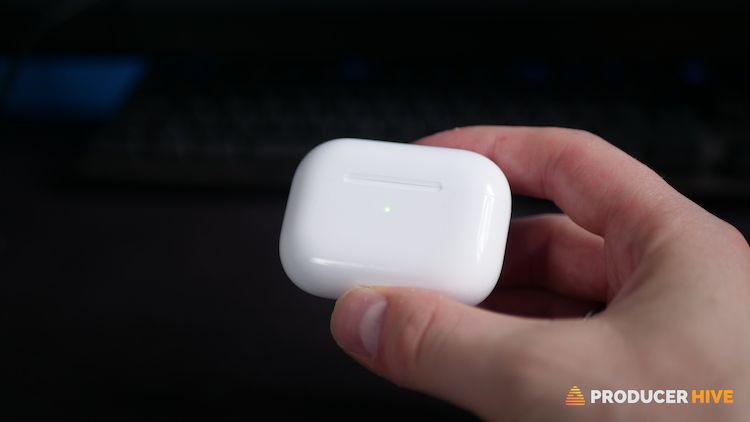
You’ll be able to see the battery status on your AirPods case. On the MagSafe and Wireless charging case, there will be a small light in the middle of the case. This will be inside the case between the two buds for 1st and 2nd Gen models.
If you see a solid green light, then AirPods are fully charged or close to being fully charged. If there is no light, then that means the battery is empty.
Of course, this isn’t as accurate as checking the battery level on your iPhone, iPad, or Mac, but given that your AirPods aren’t currently connected, it’s worth checking, as this could indicate why you can’t link to your device.
Update Your AirPods Firmware
Firmware updates to your AirPods will usually happen automatically when placed in their charging case and within Bluetooth range of your device. Apple regularly releases these updates to ensure the smooth running of our AirPods.
However, if your firmware is out of date, you might find it blocks you from connecting to your device and puts you in a vicious circle as you need to update the firmware to connect, but you need to connect to update the firmware!
If you want to check on the firmware of your AirPods, you can do this via your phone even when the AirPods are not connected; just follow these steps:
- Open the ‘Settings’ app
- Select ‘Bluetooth’
- Tap on the ‘i’ next to your AirPods (this will be under ‘My Devices’ and should show your AirPods even though they aren’t linked to your phone)

- Next to ‘Version’, you will see a code representing your AirPods firmware.


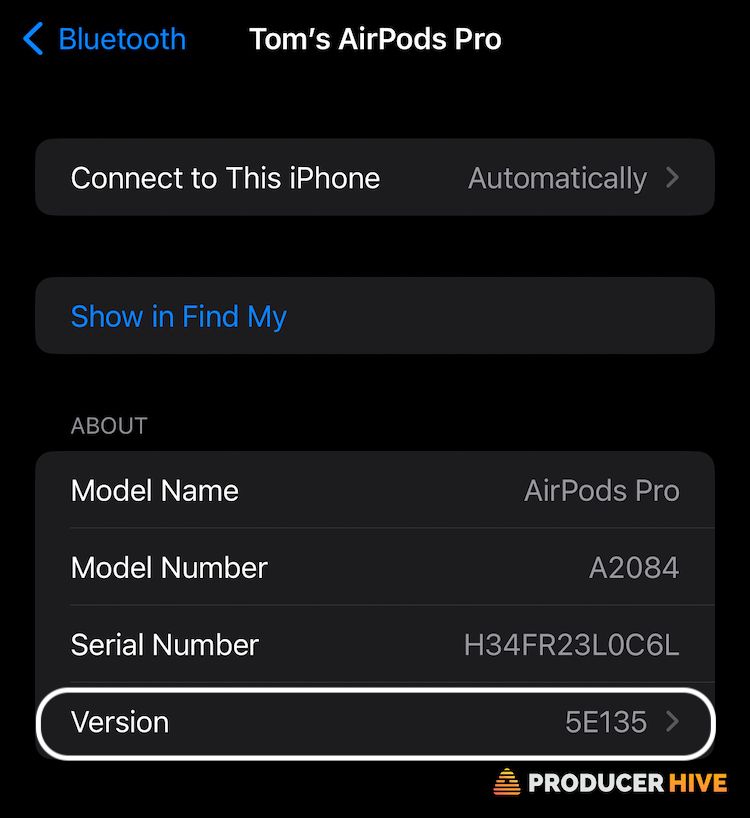
Now, all you need to do is head to Apple’s website to check the latest firmware update and see if the code matches. If not, then try updating your AirPods firmware.
To update your AirPods firmware when not connected to your phone, just follow these instructions:
- Place your AirPods inside the charging case
- Connect the case to your Mac via USB-C
There are two things to remember. First, the firmware update will only be possible by plugging your AirPods into an Apple device. Secondly, your Mac won’t identify what firmware your AirPods are currently on.
However, plugging them in using this method will automatically trigger the firmware update.
Ensure Your AirPods Aren’t Already Connected To Another Device
If your AirPods are already connected to another device, they won’t be able to connect to your iPhone, Android phone (or any other device such as a laptop or Chromebook).
Check any other device’s Bluetooth device list that you might have connected to, and remove your AirPods if they are listed there. Although they are an Apple product, AirPods can connect to most Bluetooth devices.
Did you know you can connect two AirPods to one device?
Check Your iOS Version
Apple regularly updates its iPhone and iPad operating systems (iOS). If you aren’t on the latest version, you might struggle to connect your AirPods to your iPhone or iPad.
To check if you are on the latest iOS, follow these steps on your iPhone or iPad:
- Open your ‘Settings’ app
- Scroll to ‘General’
- Select ‘Software Update’

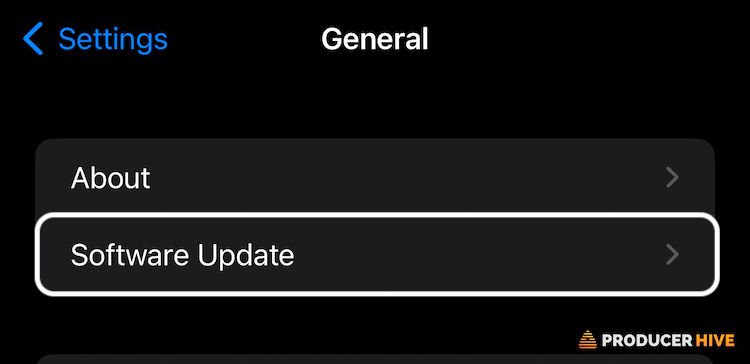
On the next screen, you’ll see if an update is available. If you aren’t on the latest version, install this and try connecting again.
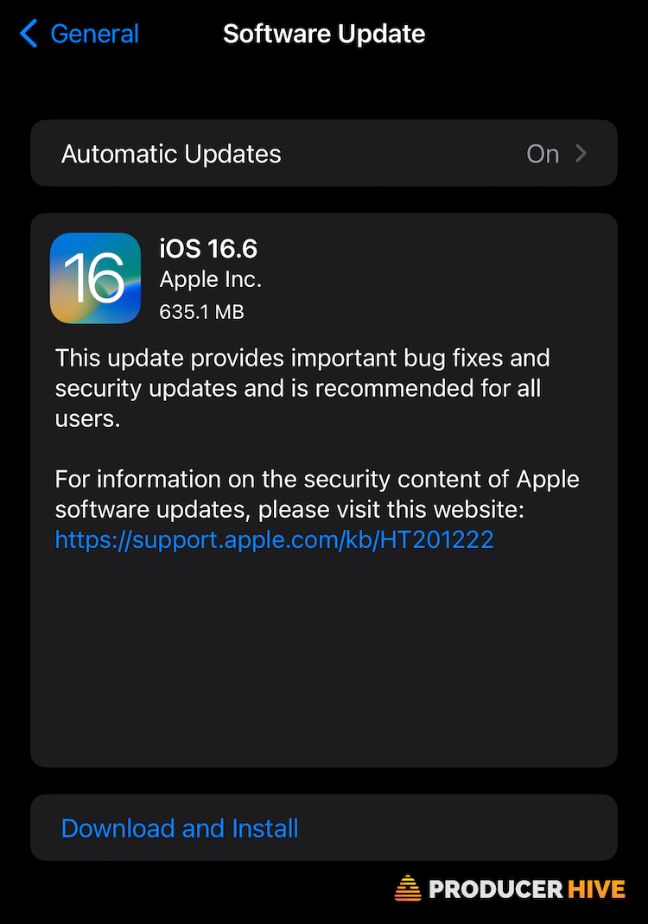
You’ll also notice an option for Automatic Updates that can be switched on to do this automatically.
Remember that installing the update can take some time, so make sure you don’t need your phone urgently or aren’t about to go to an area with no WiFi!
Your Phone Is In Low Power Mode
Low power mode is an extremely useful function on many phones, including the iPhone.
Low power mode may be automatically enabled when your phone battery reaches a certain percentage, usually 20%. Doing this halts many non-critical functions of the phone so that you can prolong your battery life for as long as possible until you can charge it.
The trade-off is that this can result in an unreliable Bluetooth connection, so if you’re in low-power mode, see if the problem persists once the phone is charged.
It is possible to turn off low power mode. However, we’d suggest making sure that your phone completely dying won’t be an issue before doing so, as switching it off and listening to music will result in faster battery use.
To turn off low power mode on an iPhone or iPad, just follow these steps:
- Open your ‘Settings’ app
- Scroll to ‘Battery’

- Toggle on or off low power mode

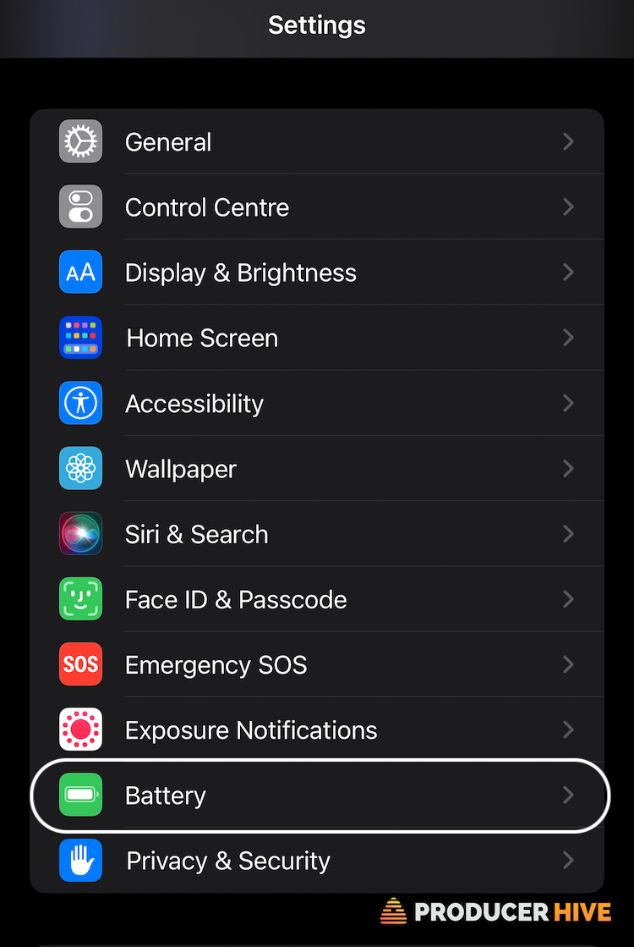
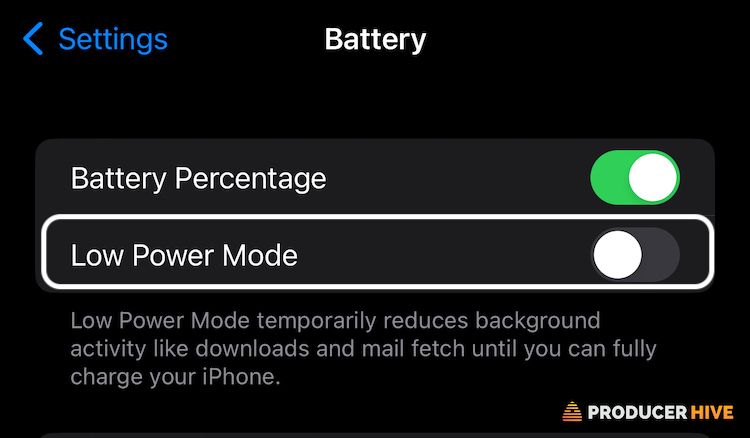
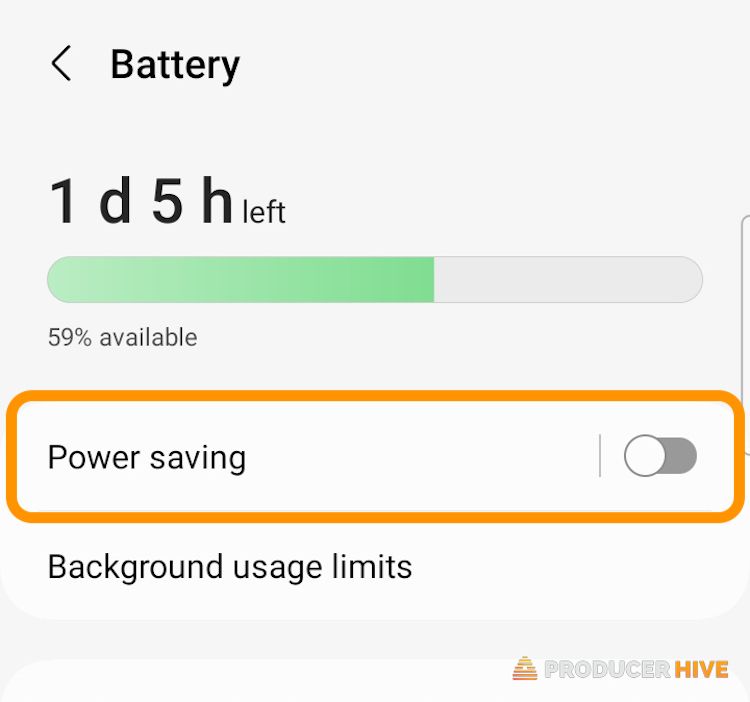
To turn off low power mode on an Android device, follow these instructions:
- Open the ‘Settings’ app

- Tap on ‘Battery and Device Care’
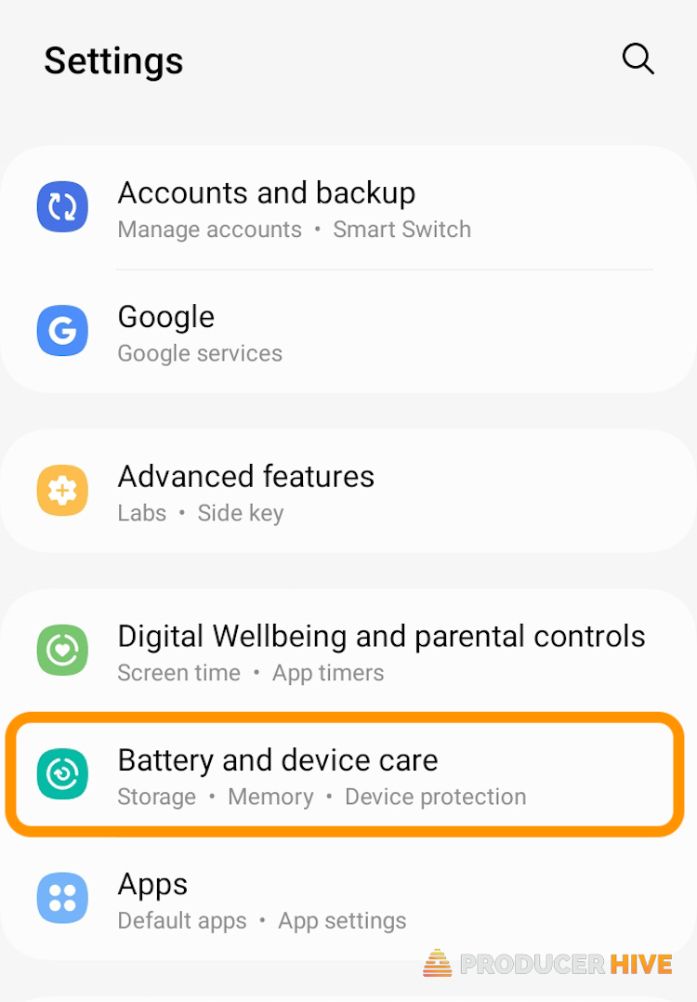
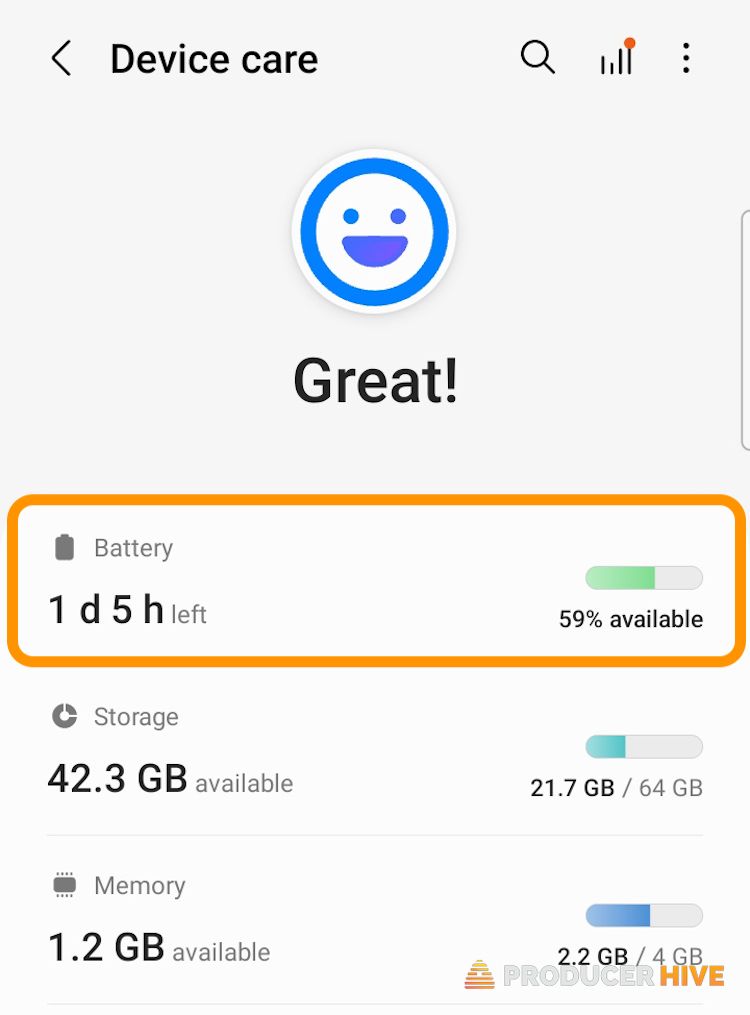
3. Toggle Power Saving Mode off
Reset Your AirPods And Device
When all else fails, try the trusty reset option! While it’s not a guaranteed fix, resetting your AirPods often can sort any connection issues out.
There are a few ways to reset your AirPods, depending on your model. Thankfully, it’s quick and painless to do.
If you need to know how to reset your AirPods, follow our complete guide here.
Similarly, resetting or often just restarting your phone can clear the issue up, so give this a try if you’re struggling to connect your AirPods
FAQs
Can Apple Repair My AirPods If They Won’t Connect?
If there is a physical fault with your AirPods, then Apple can help, but even if it’s purely technical help you need, you can still contact their customer support team or visit an Apple store.
If there is a fault with the AirPods, a fix is usually possible. It’s worth considering AppleCare+ if you are about to buy a set of AirPods. A physical defect is unlikely, but it’s extra peace of mind.
Will Damaging My AirPods Stop Them From Connecting?
This entirely depends on the damage. If you’ve dropped your AirPods, then they should be sturdy enough to survive, but it is possible that a knock or bump could result in a technical issue.
Other problems, such as getting them wet, may result in connectivity issues or worse. While AirPods are designed to be water and sweat-resistant, water damage is still entirely possible.
My AirPods Are Connecting But Don’t Sound Right
This could entail a few things, such as a buzzing or a muffled sound. If you are hearing your music, then that means a connection has been successful.
However, there may be additional reasons causing your audio issues:
- If your AirPods are muffled, read up on our guide here
- If your AirPods are buzzing, find the solution here.
- If you’re listening to Dolby Atmos on your AirPods and have a muffled sound, check out our guide here.
If you are experiencing a muffled or dull sound, try to avoid compensating by turning your AirPods up, as, although small, they can potentially cause hearing damage.


