

- Learn how to pair JBL headphones to various devices.
- Diagnose JBL connection issues.
- Find and solve common JBL headphone problems.
- For earbuds users, head to our post on how to pair JBL earbuds.
This guide will demonstrate how to connect JBL headphones to various devices and provide troubleshooting tips for any issues.
The following devices are covered:
💡QUICK ANSWER: To pair your JBL headphones, follow these steps:
- Activate Bluetooth on your device.
- Put the headphones into pairing mode by holding the power button until the LED flashes.
- Select the headphones from the list of available devices in your device’s Bluetooth settings.
How To Put JBL Headphones In Pairing Mode
To connect JBL headphones to any of your devices, you must ensure they are in pairing mode. To do this, follow these simple steps:
- Press the Power Button to turn on your JBL headphones. This will automatically connect them to your media device.

- If they fail to connect, hold the power button for 5 seconds. A flashing blue LED will indicate Bluetooth pairing mode.

How To Pair JBL Headphones
To iPhone & iPad
iPhone & iPad have the same pairing process. Ensure your device is set to pairing mode and follow these steps:
- Open Settings on your device and select Bluetooth.
- Ensure Bluetooth is turned on. It will automatically scan for a compatible connection. Select your JBL headphones model once they appear.
- You should then see the headphones listed as a connected device. Test the connection by playing some audio.


Certain devices may require a 4-digit password to allow for safe pairing. The default password for JBL products is 0000. Check the manual for a unique code if this does not work.
To Android
Connecting your JBL headphones to an Android device is easy. Follow these steps:
- Ensure your headphones are in pairing mode and open the Settings menu on your Android device.
- Select Connected Devices.
- Select Pair New Device.
- Select your JBL headphones under Available Devices.
- Your headphones will appear in the Connected Devices menu under Media Devices. Confirm a successful connection by playing some audio.


To Mac
Connecting JBL headphones to Apple desktops and MacBooks is the same. Follow these simple steps:
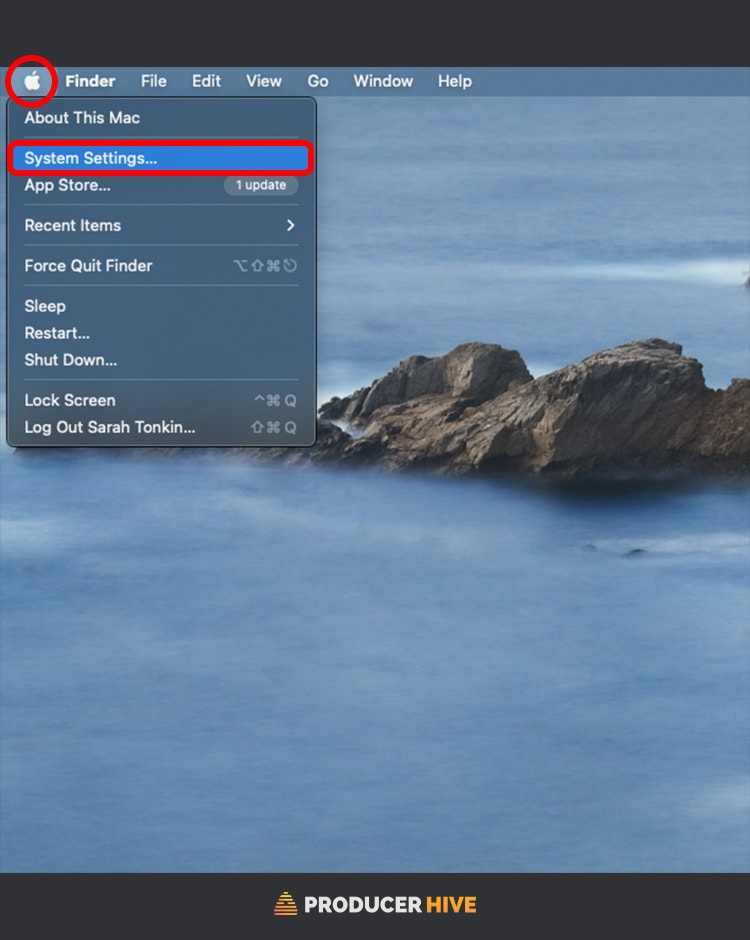
- Click on the Apple logo in the top left of the screen and select System Settings.
- Select Bluetooth, ensure your headphones are in pairing mode, and you should see them appear in Nearby Devices.
- Click on them to pair. Ensure the connection is successful by playing some audio on your headphones.

To Windows
Using your JBL headphones with a Windows PC? Follow these steps to connect them:
- Press the Windows button and click on Settings.
- Click on Bluetooth and Other Devices, ensuring Bluetooth is switched on.
- Click Add Bluetooth Or Other Device and select Bluetooth.
- Select your headphones from the list of available devices.
- Your device is now connected. Confirm by playing some audio.


💡 Most PCs will have an in-built function for pairing Bluetooth devices, but older models may require a Bluetooth adapter.
To Apple Watch
Connecting your JBL headphones to your Apple Watch is simple:
- Open Settings on your Apple Watch and scroll to the Bluetooth option.
- Select Bluetooth to scan for Compatible Devices.
- Once you see your headphones in the list, click on them to pair.
To Smart TV
Most smart TVs will come with an in-built Bluetooth function. However, older models may require an adapter. Luckily, pairing your JBL headphones is quick and easy either way:
- Ensure your headphones are in pairing mode
- Locate your TV’s Settings menu and select Bluetooth.
- Scan for Applicable Devices.
- Select your JBL headphones and connect.
JBL Headphones Troubleshooting Tips
How To Disconnect Headphones From A Bluetooth Device
You don’t need to disconnect your headphones from your device manually. All you need to do is switch your headphones off to stop the JBL headphone’s Bluetooth connection.
Similarly, the connection will automatically cease when your device is switched off.
Only One Headphone Is Connecting
If you’re in range and only one of your JBL headphones is connecting, it is likely one of two problems.
The first is that the battery may be low, which can cause the headphones to stop functioning correctly. If this is the case, recharge your headphones and try again. If this fails, you can try resetting your headphones’ connection in the steps mentioned at the end of this article.
Headphones Won’t Turn On After Charging
You might find an issue with powering the headphones despite being fully charged.
This is a fairly common occurrence with an easy fix. First off, you can try resetting the headphones. This will often clear any problems the headphones are encountering.
If this doesn’t work, try this method:
- Hold the power button for around 5 seconds.
- Press the power button again three times in a row.
- Press the power button down once more until the LED light activates.
If you can still not power on the headphones after charging and these methods don’t work, you could have a faulty unit.
Contact JBL directly or the retailer you purchased your headphones from (although keep in mind if your warranty has expired, they may not be able to replace the headphones directly).
Headphones Won’t Turn Off
If you’re trying to power down your headphones, but they refuse to turn off, it could be that they are still connected to a Bluetooth device.
Usually, this won’t be an issue, but check your headphone’s Bluetooth connection. If the device is still playing audio, this may cause the issue.
Stop the audio playing and try again. If you still can’t power down the headphones, try resetting them using the instructions below.
Headphones Flashing Blue/White?
If you can see flashing lights on your headphones, they are likely trying to connect to a Bluetooth device. If the issue continues without connecting successfully, try resetting your headphones.
You can also check that your device isn’t already linked to another Bluetooth connection. If this is the case, your headphones may be attempting to connect but are being blocked.
How To Reset JBL Headphones
If any of the abovementioned troubleshooting tips didn’t work, you can try resetting your headphones. Just follow these simple steps:
- Ensure the headphones are powered on.
- Hold the volume up and volume down buttons simultaneously for 5 seconds.
- Release the buttons when you hear the shutdown sound.
- After a short while, the headphones will power back on (at this point, they are fully reset).
We hope this guide has helped you. Refer to the video below if you require a video tutorial on connecting JBL headphones.
Before you go, check out our guide on how to pair JBL speakers.



Hold the right earbud button for three seconds for pairing for JBL Tune 125 TWS.
trying to connect my headphones to my pc is impossible. for some reason these things have like a 2m distance before they disconnect.
Hi Hal,
I had a similar issue with my PC. It was due to the built-in Bluetooth function being poor quality. I purchased an external Bluetooth adapter which gave me greater range (I can now walk to another room without losing connection).