- Amazon Fire Stick lets you stream media, such as video and music, on any TV
- It turns any TV into a Smart TV (yes, you can even load apps)!
- Learn how to connect your Amazon Fire Stick to Wi-Fi
Often when out on the road, you may find yourself staying in a hotel, B & B, or even the back of a truck where the TV and entertainment options just don’t cut it.
An Amazon Fire Stick (which you can find on Amazon as an Amazon Fire TV Stick) is the ideal solution.
It’s a media streamer that turns any TV into a Smart TV and is compact enough to slip into your backpack.
When first setting up your Amazon Fire Stick from the box, an installation wizard guides you through the process of connecting the Fire Stick to Wi-Fi, setting up or logging into your Amazon account, and getting started with Apps or streaming.
Unfortunately, the Fire Stick doesn’t hold your hand much when it comes to changing or connecting to another Wi-Fi network.
That’s where our step-by-step guide on how to connect Fire Sticks to Wi-Fi will help.
How To Connect A Fire Stick To Wi-Fi
Maybe you’re connecting the Fire Stick to the hotel Wi-Fi, using your phone as a hotspot since your home DSL has gone down, or maybe you’re simply installing a new home Wi-Fi network.
Perhaps you bought an Amazon Fire Stick secondhand or even borrowed one from a friend for a few days.
In all the above scenarios, you could always reset the Fire Stick back to factory settings and follow the installation wizard to connect the Fire Stick to Wi-Fi.
However, a much quicker (and just as simple) way to connect to a new network is simply to use the “Settings>Network” button, which you can find on the home screen.
Step-By-Step Guide
- Ensure your Amazon Fire Stick is connected to power via the USB cable and plugged into an available HDMI socket on your TV.
- Select the HDMI input using your TV remote. The Homescreen should appear with a message saying, “Home is currently unavailable; check your internet connection.”

- If a pop-up box appears saying Network Settings or Dismiss, select the Network Settings button and skip to step 6.

- Otherwise, press the Home button on your Fire Stick TV remote, scroll to the far right of the top icons to the Settings cog wheel, and then select the large middle button on your Fire Stick remote.

- Choose the Network icon (which uses the three curved lines to indicate Wi-Fi) and press Select.

- Once you have selected the Network button, the Fire Stick will automatically start scanning for nearby available networks and display them as a list.
- Move the cursor with the remote until your chosen network is highlighted in a white box, and press the Select button in the center of the Fire Stick remote.

- If the network you wish to join is not listed, select “See All Networks” to rescan.
- If the network you want to join is hidden, highlight and select “Join Other Network” and enter the name of the network when prompted.


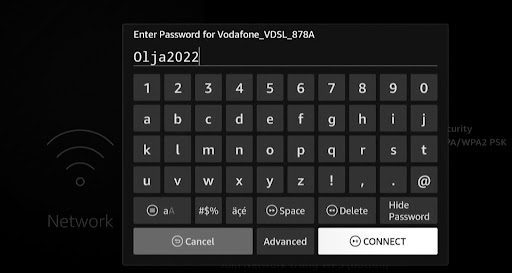
- Enter the network password using the Fire Stick remote to navigate the on-screen keyboard and press “Connect” at the bottom right of the keyboard when done.
- If your network is not password connected, the Fire Stick will try to connect automatically.
- Once the network is successfully connected, the list will reappear with “Connected” below the name of the network you have just joined.

- Press the Home button on your remote to return to the home screen, and you should be ready to go.




FAQs
Do I Need An Amazon Account To Use An Amazon TV Fire Stick?
Yes! Some would argue the Fire Stick TV is just a device for selling more Amazon content, but linking to an Amazon account also has the benefits of keeping everything in one place and remembering all online passwords in the Amazon cloud for you.
If you don’t already have an Amazon account (where have you been for the last 10 years?!), the installation wizard will take you through the steps to set one up.
You’ll need an Amazon account to use an Amazon Fire Stick; there’s currently no way of getting around it.
What Version Of Android Does An Amazon TV Fire Stick Use?
A Fire Stick uses FireOS, which is a slimmed-down version of Android 5.2, also known as the Lollipop build.
The App store for Fire Stick is a proprietary Amazon App store that sells apps specific to Amazon devices.
Although you can sideload the Google Play store via third-party apps like downloader.com, remember the Amazon Fire Stick doesn’t have the latest processors and graphic chips that newer Android devices come with.
So some apps designed specifically for the latest Android devices, particularly games, might be laggy if they even work at all.
Can You Use Ethernet With An Amazon Fire TV Fire Stick?
Out of the box, no – the Fire Stick doesn’t come equipped with any Ethernet ports and only includes a Wi-Fi chip.
However, the USB-C interface, which carries the power to the Fire Stick, can also be used for data, including Ethernet data communications.
If you already have or have owned a Chromecast device, the wall adapter already has an Ethernet port.
Simply replace your Amazon Fire Stick’s official adapter with the Chromecast adapter and connect to the Ethernet.
Another option is an inexpensive adapter cable that splits the USB-C input into both Ethernet and power.
Once connected, the Fire Stick will show as being connected via Ethernet. The capability has always been there; it just needs a port.
Can You Use an Amazon TV Fire Stick as an IPTV box?
Again, out of the box, strictly speaking, no. Most- if not all – Internet Protocol TV providers rely on technology that doesn’t abide by copyright laws – in other words, they’re very illegal.
As such, Amazon is keen to distance itself from such technologies and won’t feature them in the app store.
Using third-party apps like downloader.com, there is a choice of IPTV apps you can side-load and even some torrent downloading apps.
However, remember that the memory of an Amazon Fire Stick is very limited and will quickly fill up.
Can You Use An Amazon TV Fire Stick Without Mains Power?
Yes! The beauty of USB-C is the ability to use a device on the go with a USB-C power bank which should provide enough power for 3-4 hours of uninterrupted streaming when on the go.
Can I Connect A Fire Stick Without The Official Remote?
If, by chance, you should leave your remote at home (or if you simply lose the remote), don’t worry- you can still connect to the Fire Stick with either a phone app or an HDMI-CEC remote.
HDMI-CEC is a relatively new technology where you can use your TV remote to control any device connected by HDMI.
Unfortunately, you must already have this enabled on the Fire Stick to use this feature.
If you have access to the original remote, it’s simple to set up and may be worth setting up on the first install in case you should ever misplace or forget the Fire Stick remote.
Here’s how to connect Fire Stick to wifi without a remote in 2 simple steps:
- Navigate to Settings on the home screen and select Display and Sounds.
- Ensure HDMI-CEC device control is set to ON.
You should now be able to use your TV remote to set up the Wi-fi as shown above. If your TV doesn’t support HDMI-CEC, then another option is the phone app.
How Do I Connect Fire Stick To Wifi With The Phone App?
The Amazon app for both Android and iPhone has the ability to control your Fire Stick as a remote too. But you must be connected to the same Wi-Fi network already.
This is great if you are at home on the same home network, but what if you are out on the road and need to connect the Fire Stick to Wi-Fi without a remote?
The simple solution is, if you remember the last SSID and Password of the Home network, to use the hotspot of your phone by changing the SSID of the phone hotspot to match the most recent Wi-Fi connection network of the Fire Stick.
You will need another device to act as the remote, though, as your phone cannot connect to the hotspot it is sharing.