

- Wondering why your Spotify keeps pausing?
- Is it intermittently pausing every 10 seconds or so?
- Use our guide to troubleshoot these annoying issues.
- 7 solutions for all devices included!
In this article, we’ll discuss seven fixes for Spotify pausing randomly on all devices, provide troubleshooting tips, and answer commonly asked questions.
Issues covered:
- Spotify Stops Playing Randomly Due To Loss Of Signal
- Clear Spotify Cache
- Check If Someone Else Is Using Your Account On Another Device
- Turn Off Data Saver Mode
- Turn Off Low Power Mode
- Spotify Autoplay Is Disabled
- Reinstall Spotify
Spotify Keep Pausing? Here’s What To Do
1. Spotify Stops Playing Randomly Due To Loss Of Signal
Likely, the most common cause of Spotify pausing is simply due to a lack of signal in the area you’re in. This can commonly happen in a remote location where the reception isn’t great. Unfortunately, there isn’t a fix for this other than waiting until you reach an area with better reception.
That said, you can try some of the below tips to fix dropouts on Spotify due to a weak internet connection:
- Check your internet connection: Verify that your connection is stable and strong enough to stream music on Spotify. You can use a speed test app or website to check your internet speed.
- Switch to a different network: If you are using mobile data, try switching to a different network or Wi-Fi. Sometimes, the network you are using might have a weak signal or be overloaded with traffic.
- Move closer to the router: If you are using Wi-Fi, move closer to the router to get a stronger signal. Walls and other obstacles can weaken the Wi-Fi signal, so try to be in the same room as the router if possible.
- Close other apps: If you have other apps running in the background, they might be using up your internet bandwidth and causing Spotify to pause. Close all other apps and try streaming on Spotify again.
- Use offline mode: If a patchy signal is a regular issue, you can download your favorite songs and playlists to listen to them offline once a stable connection is attained.
2. Clear Spotify Cache
Your cache folder stores temporary data, so your app will run faster. However, if you’ve been using Spotify for a while, it could become cluttered and cause playback issues.
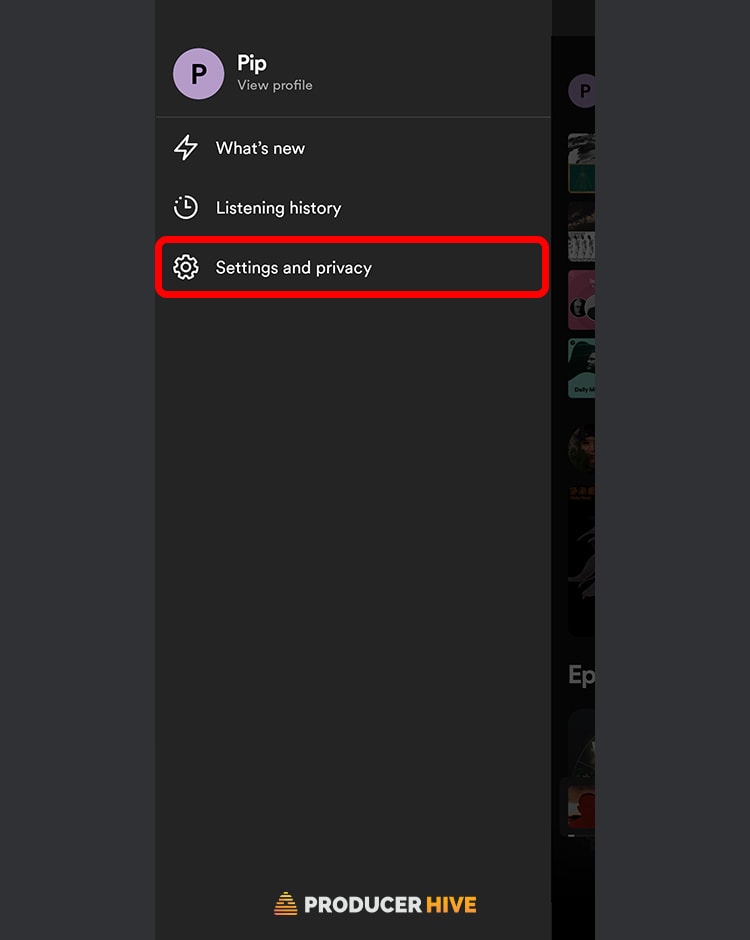
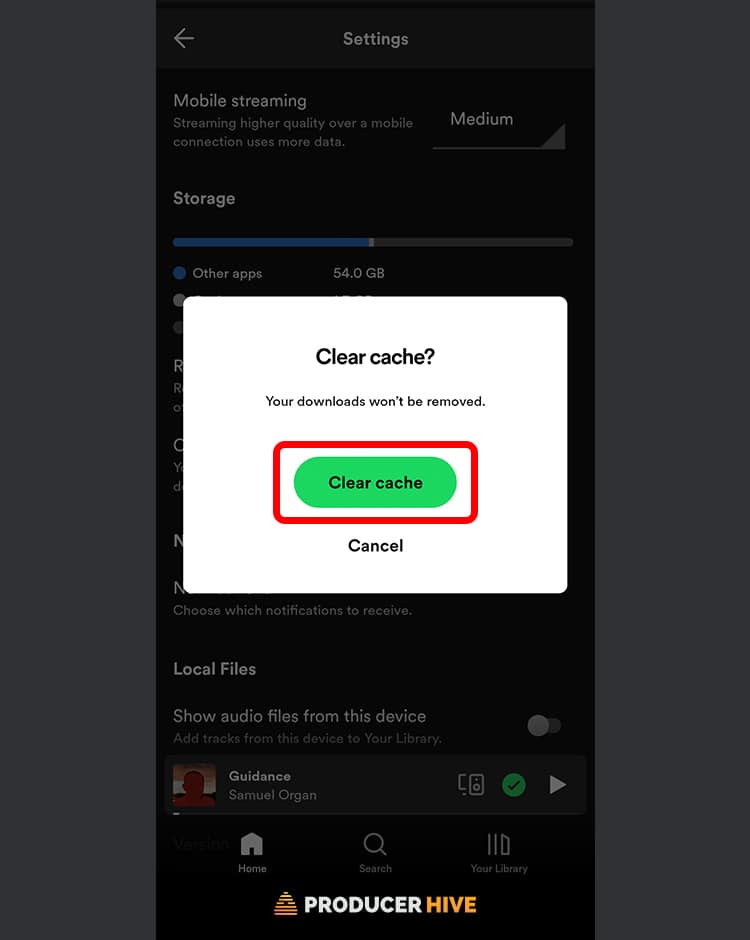
To clear your Spotify cache, follow these steps:
iOS
- Open your Spotify profile.

- Select Settings.
- Select Storage.
- Select Clear Cache.


Android
- Open your Spotify profile.
- Select Settings.
- Select Clear Cache.
- When the pop-up appears, hit Confirm.


Mac and PC
- Open your Spotify app and tap your profile icon in the top right.
- Select Settings.
- Scroll down to Offline Storage Location and select Clear Cache (you may need to choose Advanced Settings to see this on some app versions).


3. Check If Someone Else Is Using Your Account On Another Device
Spotify only allows you to stream music from one account at a time (unless you upgrade your plan).
Try the below steps if your Spotify randomly stops and you see a pop-up notification that another device is using your account:
- Take over the session: If someone else is using your account, you can take over the session by playing music from your device. This will pause the music on the other device and allow you to stream music.
- Upgrade your plan: If you want to use your Spotify account on multiple devices, consider upgrading your plan. With a premium plan, you can use your account on up to five devices simultaneously.
- Change your password: If someone else uses your account without your permission, change your password immediately. This will log out all devices using your account and prevent unauthorized access.
- Log out of all devices: If you suspect someone else is using your account, you can log out to prevent them from using it. Go to your account settings and select “Log out of all devices.”
4. Turn Off Data Saver Mode
Data saver mode is a handy function on many mobile phones that limits how much data an app can use.
This is great if you’re looking to save your data usage or cut down on roaming charges, but it can get in the way of Spotify running smoothly.
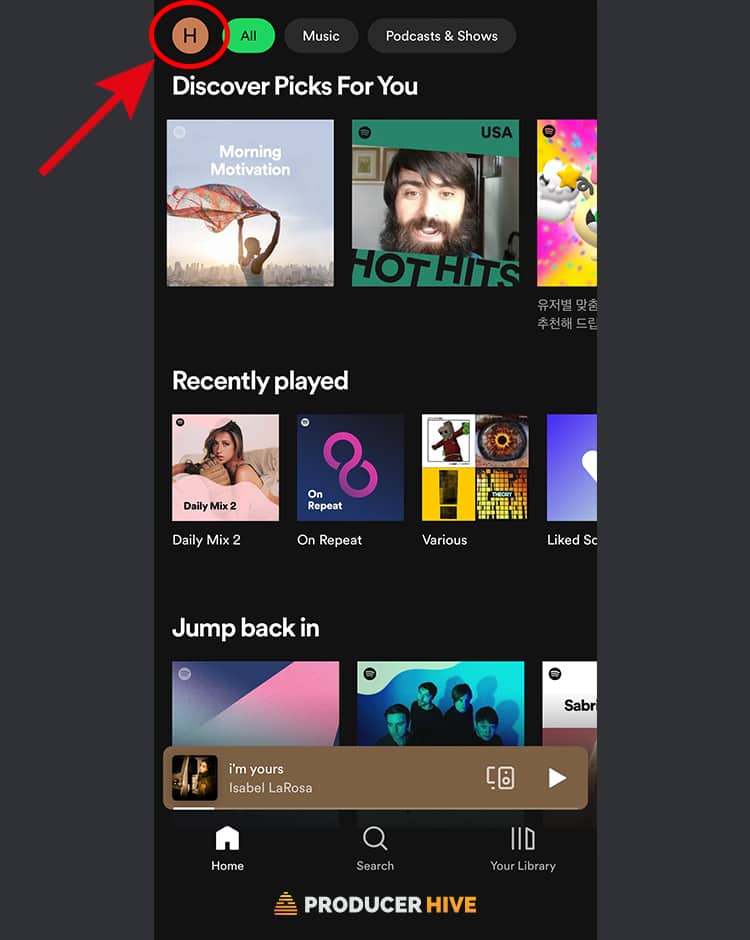
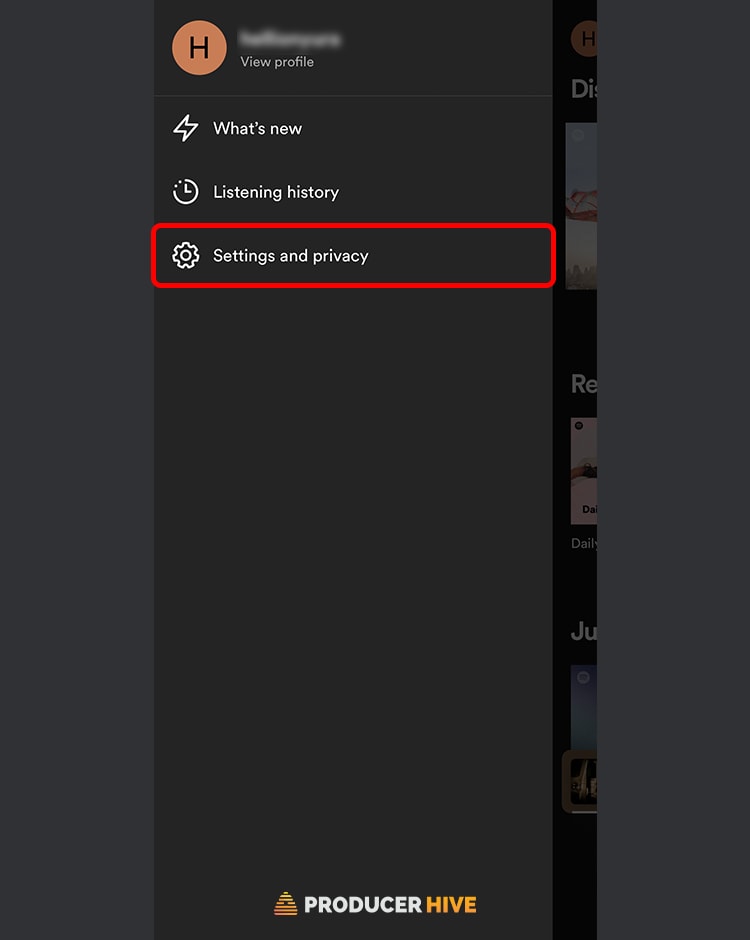
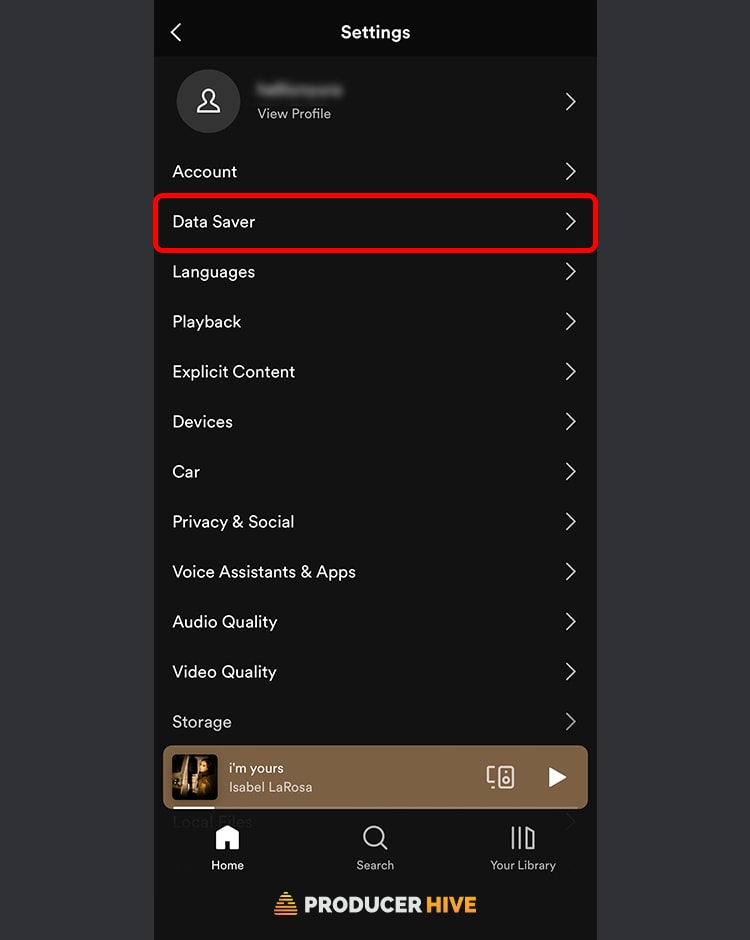
Turning off data saver mode for iOS and Android is easy. Just follow these steps:
- Open your Spotify profile.
- Select Settings.
- Select Data Saver.
- Turn data saver off.

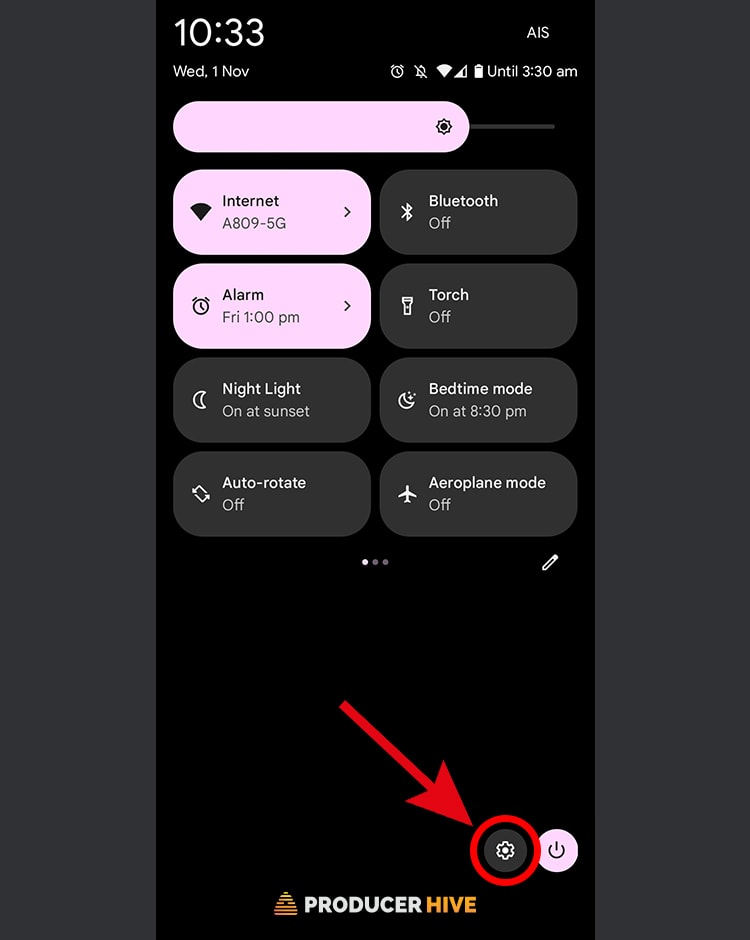
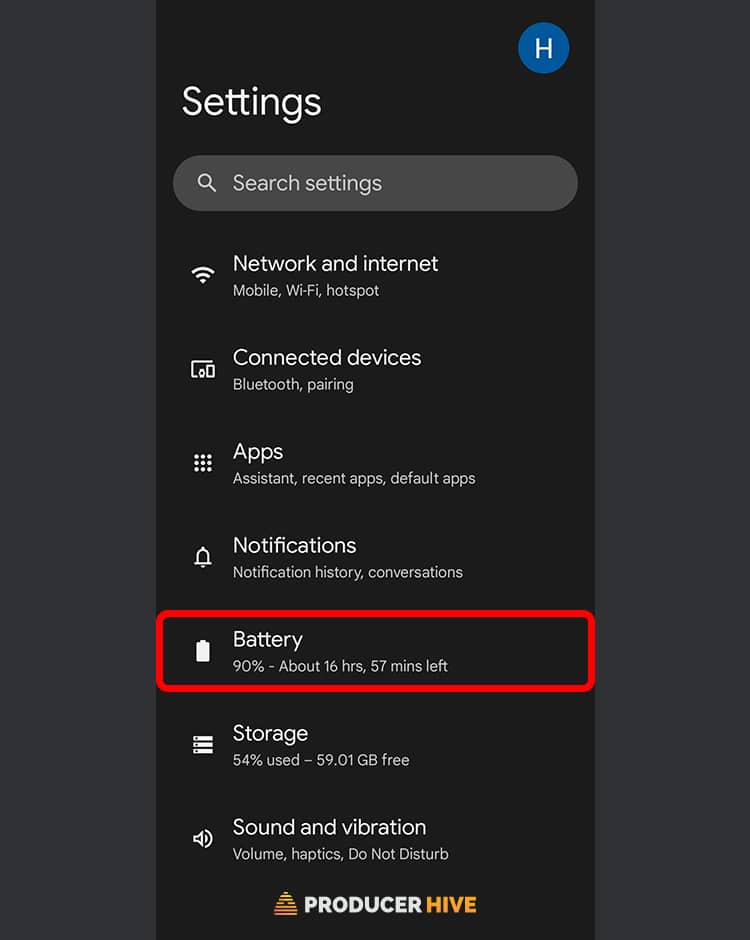
5. Turn Off Low Power Mode
If your mobile device is low on charge, it may enable low power mode (or battery saver mode). This is a great way of conserving power, but it might interrupt your Spotify app streaming music.
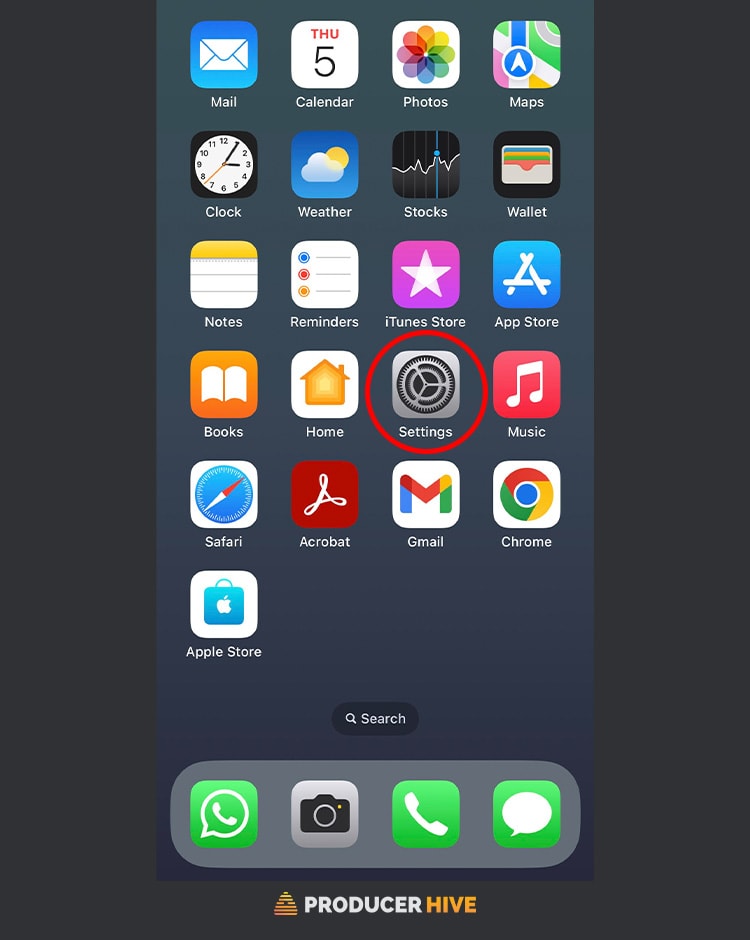
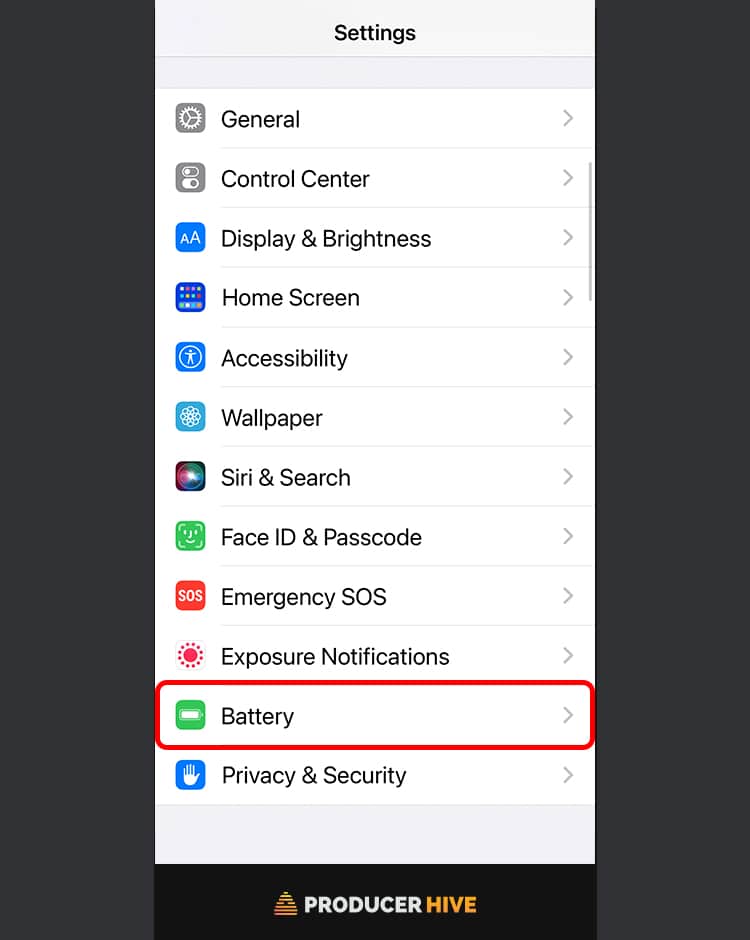
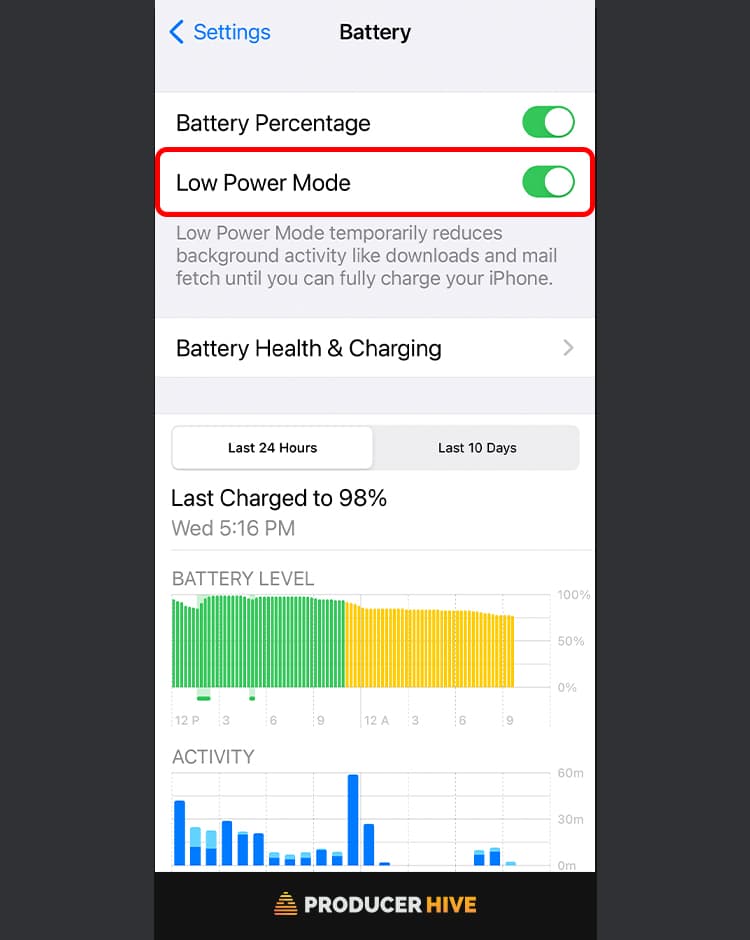
To turn off low power mode, follow these steps:
iOS
- Open Settings.
- Select Battery.
- Toggle off Low Power Mode.
Android
- Open Settings.
- Select Battery.
- Select Battery Saver.
- Toggle off Use Battery Saver.


6. Spotify Autoplay Is Disabled
Spotify Autoplay is a feature that automatically plays music similar to the song or playlist that you just finished listening to. It’s a great way to discover new music and keep the music playing without any interruptions.
That said, when autoplay is switched off, it may seem like an error has occurred, and your music is paused.
To activate Spotify Autoplay, follow these steps:
- Open the Spotify app on your device.
- Tap the gear icon in the top right corner to access the Settings.
- Scroll down and select the Autoplay option.
- Toggle the switch next to Autoplay to turn it on.
- You can choose to have Autoplay on for all playlists or just for specific playlists. You can also choose to have Autoplay on only when on Wi-Fi or both Wi-Fi and mobile data.
- Once you have activated Autoplay, it will automatically play similar music after your current song or playlist ends.
7. Reinstall Spotify
Sometimes, a simple reinstall can solve your pausing issues.
Follow the below steps to reinstall Spotify:
iOS
- Locate the Spotify app on your home screen.
- Hold down on the icon until a menu appears.
- Select Remove App.
- Head to the App Store.
- Reinstall Spotify and enter your login information when prompted.
Android
- Locate the Spotify app on your home screen.
- Hold down on the app icon.
- Drag it to the Uninstall option.
- Select ‘OK’ when prompted.
- Head to the Google Play Store.
- Reinstall Spotify and enter your login information when prompted.
FAQs
Why Does Spotify Keep Pausing At 10 Seconds?
This is a specific problem, but many users find Spotify can pause at around 9-10 seconds of playback.
First of all, check your music on both mobile data and WIFI and see if it keeps happening. If it works on WIFI, it could be a bad data connection.
If the issue persists on both WIFI and data, we’d recommend clearing your cache using the instructions above and checking to make sure you are on the latest version of Spotify, as an outdated version could cause playback issues.
Finally, if all else fails, try a reinstall of the app.
Why Does Discord Keep Pausing Spotify?
Spotify users have reported frequent pausing every 30 seconds due to a conflict with the Discord app. By default, Discord activates voice input.
When both apps are open, and Spotify plays music through speakers (not affecting those using headphones or earbuds), Discord takes priority over Spotify for voice detection, causing intermittent pausing until voice activation is turned off.
How To Disconnect Spotify From Discord
By following these steps, you can disconnect Spotify from Discord and prevent any conflicts between the two apps:
- Open Discord on your computer or mobile device.
- Click on the Settings gear icon in the bottom left corner of the screen.
- Scroll down to the Connections section and click on Spotify.
- Click the Disconnect button to remove the connection between Discord and Spotify.
- Confirm that you want to disconnect Spotify from Discord.
- Close the Discord app and reopen it to ensure that the changes have taken effect.
Why is Spotify Only Playing 30 Seconds of a Song?
If you’re having issues with only 30 seconds of a song playing, try the steps above to try and rectify the issue.
However, this problem may be down to your plan. On a Premium plan, you can listen to any music on demand, but this feature isn’t available on free plans.
If you are on a free plan, it may be that Spotify is only playing a preview of the song. So, rather than a connection issue, it’s simply a feature that will crop up until you subscribe to a paid plan.



Thanks for sharing! It’s really helpful. Also, I think it’s important to back up your Spotify songs in advance because sometimes the “keep pausing” problem is just Spotify service itself going wrong. I use DumpMedia to download my favourite songs to MP3 and store them to my phone so that I can at least have something to listen when Spotify is not available.