

- Follow these simple steps to make your Spotify playlists public or private.
- Learn how to create and edit playlists on all devices.
- Understand the differences and limitations between free and premium accounts.
- Also, check out our complete guide to the Spotify EQ here.
This guide will assist you in making a Spotify playlist public or private on all devices. We also offer tips on creating playlists and answer commonly asked questions regarding Spotify usage. Let’s start with the basics.
To make a playlist public or private, you must be the playlist’s creator. This means that the playlist will be searchable and able to be saved by other Spotify users.
This is great if you want people to enjoy your favorite 100 gym songs, but maybe not so much if it’s your breakup list of the greatest 80s power ballads you want to keep to yourself.
Read on to learn more about creating and setting playlists publicly or privately from scratch.
How To Create A Spotify Playlist
On Mobile
To create a Spotify playlist on mobile, follow these steps:
- Open the Spotify app and select Your Library.
- Tap the + sign to name and create a new playlist.
- Select Playlists.
- Rename your playlist and add an image.
From there, you can either tap ‘Add Songs’ within the playlist and search for them or locate a song with the search function and add it to the song by tapping the three white dots next to it.


On Desktop
To create a Spotify playlist on your desktop, follow these steps:
- Open the Spotify app and click the Library icon.
- Click the + sign.
- Select Create A New Playlist.
- Click the three white dots.
- Select Edit Details.
- Here, you can rename your playlist and add an image.


How To Make Spotify Playlist Public
If your Spotify playlist is private and you want to enable anyone to find it, follow these steps:
On Desktop
- Open the Spotify app and click the Library icon.
- Select your chosen playlist.
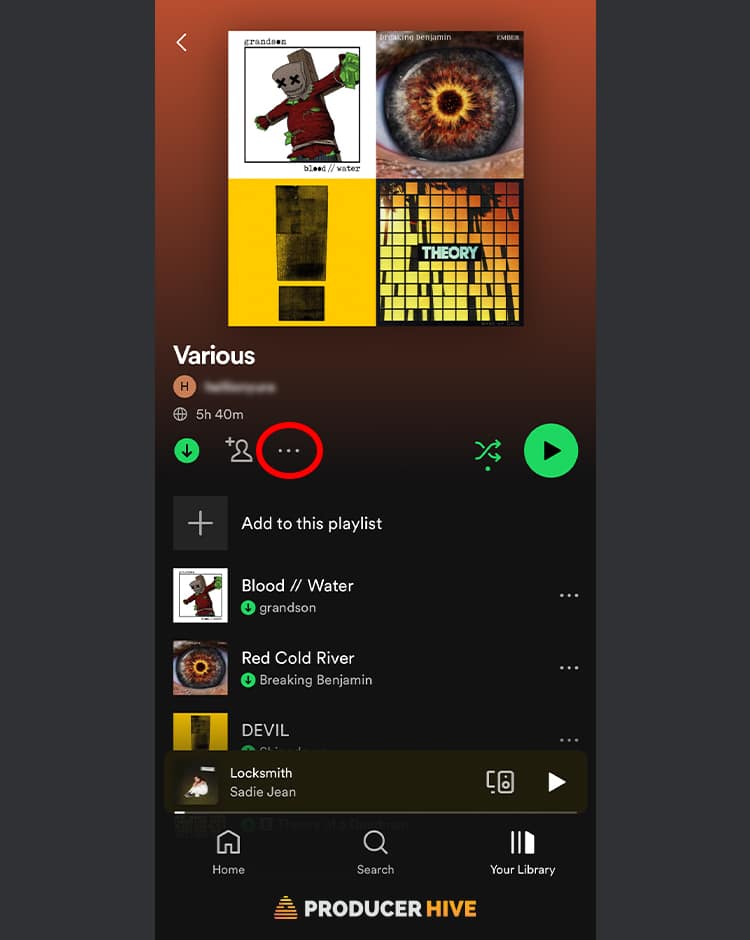
- Click on the three white dots by the playlist name.
- Select Make Public.


On Mobile
- Open the Spotify app and click the Library icon.
- Tap Your Library on the bottom right.
- Select Playlists and open the playlist you want to make public.
- Click on the three dots by the playlist name and select Make Public.


How To Make Spotify Playlist Private
If your Spotify playlist is public and you wish to make it private, follow these steps:
On Desktop
- Open the Spotify app and click the Library icon.
- Select your chosen playlist.
- Click on the three white dots by the playlist name.
- Select Make Private.


On Mobile
- Open the Spotify app and click the Library icon.
- Tap Your Library on the bottom right.
- Select Playlists and open the playlist you want to make public.
- Click on the three dots by the playlist name and select Make Private.

FAQ
Why Can’t I Make A Spotify Playlist Public?
If you’re struggling to make a playlist public, it is likely that it is either a collaborative playlist or you aren’t the creator.
How Do I Hide A Song On Spotify?
If you’re listening to music on a Spotify playlist, you might choose to hide a song if you don’t want to hear it anymore. This can be done in a few easy steps. It won’t delete or remove the song, but Spotify will skip it the next time it reaches it.
All you need to do is tap on the three dots next to the track you want to skip over and select ‘Hide Song’.
It’s worth noting you might not be able to do this directly from the playlist and will instead need to manually search for the track to be able to hide it.
How Do I Unhide A Song On Spotify?
If you have a previously hidden song that you’d like to be able to hear again, all you need to do is tap on the three dots next to the song (you’ll see a track is hidden when it has a red minus symbol next to it).
From there, tap ‘Hidden’ and the track will become available again.
How Do I Know If My Spotify Playlist Is Public?
If you’re making a Spotify playlist public, there is an easy way to check whether this has worked.
- Hit the three dots next to the playlist name.
- If it says ‘Make Playlist Private,’ you know it’s public.
- If it says ‘Make Playlist Public,’ you know it’s private.
Another way is to open your Spotify page on a browser that isn’t logged in as you. If your playlists appear, then you know they are public.
Do I Need Spotify Premium To Create Playlists?
Nope! Free users can also create playlists. However, there are some other limitations that you’ll encounter:
- The free version also won’t let you choose songs from a playlist; it will start playing at a point of Spotify’s choice.
- You’ll also have to endure ads in between songs.
- Free Spotify accounts have limited access to certain songs.
Spotify pays less to artists if their streams have been sourced from a free account. To combat this, artists can opt into a feature that blocks free users from listening to a new release for a limited time.
- Check out our full guide to the Spotify EQ here.
- Also, check out our article on using the Spotify Bass Booster and the Best Spotify EQ settings for AirPods.



I am working on a social media and email campaign for my company. We are wanting to create a 6-10 play list of songs and then share the link on our emails and social posts. Is that something we can do with the example you gave above.