

You want to connect BOSE headphones to your Windows PC, but it’s proving more challenging than expected. We understand the frustration. Newer BOSE headphones often rely on Bluetooth technology for pairing.
This can sometimes cause issues, especially with new equipment. But don’t worry; we’ll get your headphones connected in just a few simple steps.
Note: While this guide is designed for BOSE headphones, the process might be similar for other headphone brands. Always refer to the manufacturer’s instructions for specific pairing details.
Step-by-Step Guide to Pairing BOSE Headphones to Windows PC
To pair BOSE headphones to your Windows PC, follow these steps:
1. Ensure Your BOSE Headphones Are Charged
Before starting the pairing process, make sure your BOSE headphones have sufficient battery life. A low battery can interrupt the pairing process.
Typically, the charging light on your BOSE headphones will illuminate a solid white color when they’re fully charged. However, if they’re still in the process of charging, you’ll notice the light flashing white.
2. Turn On Your BOSE Headphones
To begin, power on your BOSE headphones. This is usually done by pressing the power button located on the headphones. Upon doing so, an indicator light should illuminate, signaling that the headphones are active and ready for use.
3. Activate Pairing Mode
For most BOSE headphones, you can enter pairing mode by holding down the power or Bluetooth buttons. Hold this button for a few seconds until the indicator light starts flashing.
If your headphones have a specific Bluetooth button, it will likely have a Bluetooth logo on or adjacent to it.
The Bluetooth and/or power button is usually located on the headphones. On some BOSE headphones, the Bluetooth pairing button is on the bottom of one of the headphone speakers. On others, you’ll find the pairing button or toggle switch on the outer side of one of the headphone speakers.
When the indicator light is flashing, your BOSE device is now discoverable. Now, you need your Windows PC also in pairing mode.
4. Open Bluetooth Settings on Your Windows PC
On your Windows PC, click on the Start menu and select ‘Settings’. From there, choose ‘Devices’ and then ‘Bluetooth & other devices’. Ensure Bluetooth is turned on.
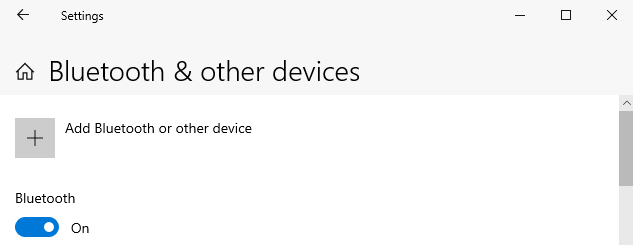
5. Pair Your Headphones
Under ‘Add a device’, click on ‘Bluetooth’. Your PC will then initiate a search for devices in proximity. Once your BOSE headphones are detected and displayed in the list, simply click on them to commence the pairing process.
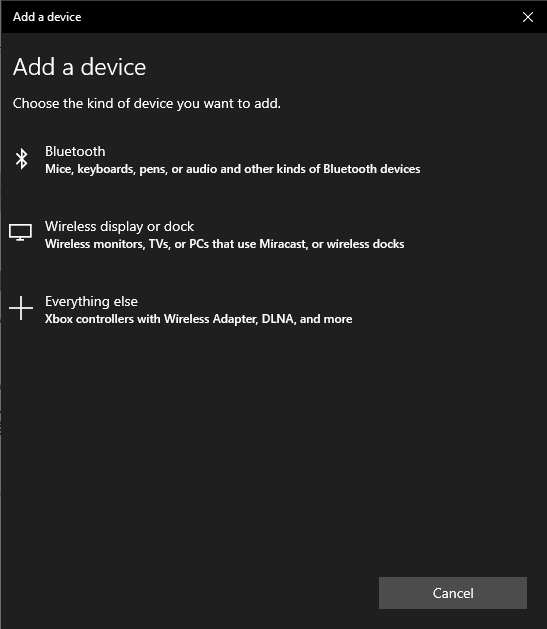
Once successfully paired, your BOSE headphones should display as ‘Connected’ in the Bluetooth & other devices window.
If the pairing isn’t successful, try these troubleshooting tips below..
Troubleshooting
If your headphones don’t appear on the list of connected devices:
- Ensure they are in pairing mode. BOSE headphones will typically flash a blinking blue light when in pairing mode.
- Check for interference. Bluetooth has a wide range (up to 30 meters in some cases), which can be a blessing and a curse. There may be another Bluetooth device that’s interfering or already connected to your PC. Check ‘Bluetooth & other devices’ on your PC and disconnect (or remove, if necessary) any disrupting connections.
- Restart both your headphones and PC and try again. If you need to factory reset your BOSE headphones (or your PC, for that matter), be sure to add them again to ‘Bluetooth & other devices’ in Windows.
- Update firmware. BOSE often releases firmware updates to enhance performance or fix known issues. The BOSE website can guide you through the firmware update process for your specific headphone model.
- Bluetooth driver update. Outdated Bluetooth drivers on your PC can cause connectivity issues. In Device Manager on your Windows PC, locate the Bluetooth section, right-click on your Bluetooth adapter, and select ‘Update driver’.
Pairing your BOSE headphones with a Windows PC is a simple process. By following the steps above, you’ll be ready to enjoy wireless audio in no time. For more guides and tips, explore other articles on the Producer Hive platform.
Related articles:
FAQ
Why aren’t my BOSE headphones appearing in the Bluetooth list on my Windows PC?
Ensure your headphones are in pairing mode, indicated by a blinking blue light. If they’re in pairing mode and still not appearing, there might be interference from other Bluetooth devices. Disconnect or remove any unnecessary Bluetooth connections and try again.
My headphones are paired but there’s no sound. What should I do?
Check the audio output settings on your PC. Ensure that your BOSE headphones are selected as your playback device. If they’re connected but not set as the current audio output, you won’t hear any sound.
How far can I move from my PC while wearing my BOSE headphones?
Bluetooth typically has a range of up to 30 meters without obstructions. However, walls and other obstacles can reduce this range. For the best audio experience, stay within proximity to your PC.
Can I connect my BOSE headphones to multiple devices at once?
Some BOSE headphone models support multipoint connections, allowing them to be connected to two devices simultaneously. Refer to your headphone’s manual to see if this feature is supported.
The audio is choppy or cuts out occasionally. How can I fix this?
Ensure there’s no interference from other electronic devices. Also, ensure your headphones and PC are within the optimal Bluetooth range. If the issue persists, try restarting both devices and re-pairing them.
How do I factory reset my BOSE headphones?
The process varies between models. Typically, you’ll need to hold down specific buttons for a certain duration. Refer to your headphone’s manual for detailed instructions.


