

- Learn how to connect Shokz to multiple devices.
- Troubleshoot connection issues and common problems.
- Also, check out our post on whether Bone Conduction Headphones Cause Vertigo?
This article will guide you through connecting Shokz (previously Aftershokz) headphones to various devices, including iPhone, Android, Mac, and PC. We will also discuss pairing with NFC, plus some troubleshooting tips for common issues.
The following devices are covered:
How To Put Shokz Headphones In Pairing Mode
To enter Shokz or Aftershokz Bluetooth pairing mode, follow these steps:
- Ensure the headphones are switched off.

- Hold the Volume+ button for 5-7 seconds.
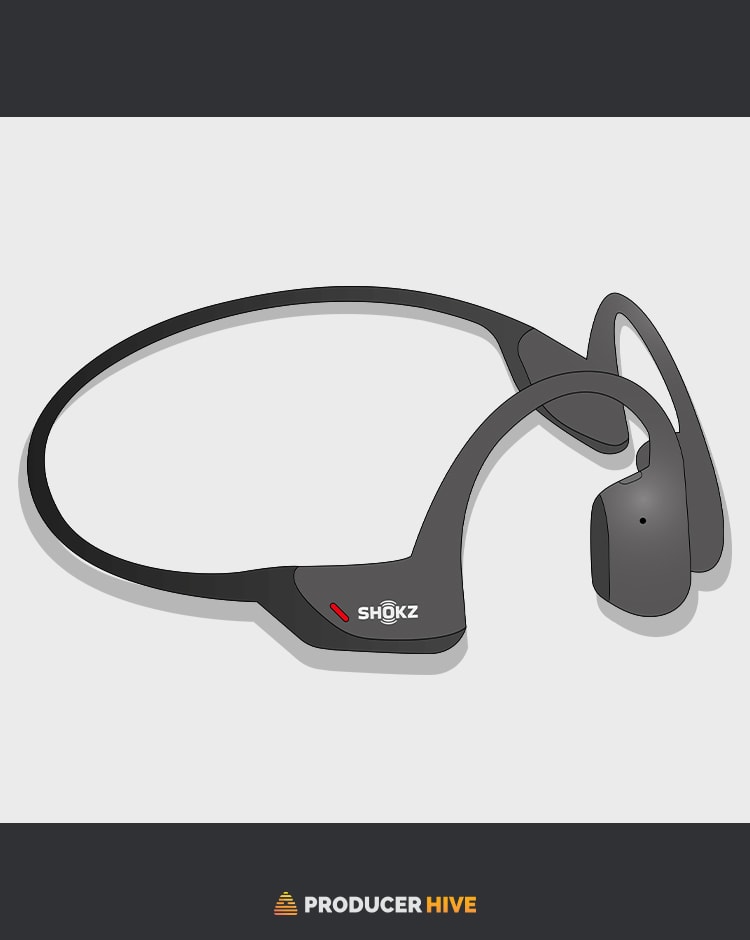
- Wait until the LED flashes red and blue.
- You will hear the voice command say ‘Pairing’.
- Your Shokz or Aftershokz are now paired to your device.


How To Pair Shokz Headphones
Shokz and Aftershokz Bluetooth pairing will operate the same, so regardless of whether you own a newer or older model, you can follow the below steps for each device.
To Android
- Ensure your Shokz or Aftershokz pairing mode is enabled.
- Open the Settings menu.
- Locate and select your headphones on the device list.
- The LED should flash blue and prompt you with a voice confirmation of ‘Connected.’


To Android With NFC
NFC (or near-field communication) is a unique technology that allows a compatible mobile device and NFC-equipped headset to connect by being close to each other. This removes any need to scroll through settings and Bluetooth menus.
However, currently, NFC is only available on the Aftershokz OpenComm Bone Conduction headset.
To use NFC to pair Aftershokz headphones, follow these steps:
- Ensure Aftershokz Bluetooth pairing mode is enabled.
- Hold your headphones (where the NFC logo is located) next to the device you want to connect.
- A blue LED will flash with a voice confirmation of ‘Connected’.
- If a prompt pops up onscreen, hit Confirm to complete the connection.


As mentioned, this is much quicker than the usual Aftershokz Bluetooth pairing process. However, you must ensure your Android device is currently NFC compatible.
Some iPhones will have NFC capability, but unfortunately, not for headphone pairing (their NFC is typically used for other functions such as Apple Pay).
To iPhone
- Ensure your Shokz or Aftershokz pairing mode is enabled.
- Open the Settings app and select Bluetooth.
- Select your headphones from the available device list.
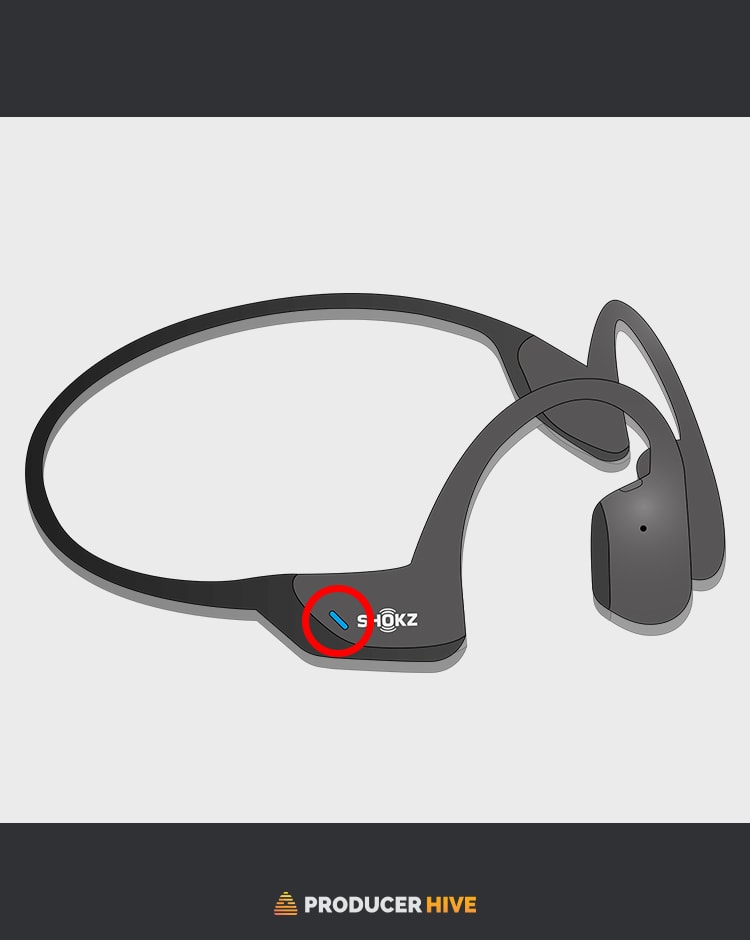
- The Shokz LED will flash blue with a voice confirmation saying ‘Connected.’


To Windows
- Open the Start Menu and search for Settings.
- Select Settings
- Select Devices
- If prompted, select Bluetooth and Other Devices.
- Click Add Bluetooth Or Other Device, followed by Bluetooth.
- Locate your Shokz and click on them to connect. The blue LED should flash and prompt you with a voice confirming you are ‘Connected.’
To pair Shokz headphones with your laptop or PC, ensure your Bluetooth drivers are current. You may need a Bluetooth adapter to complete the connection if you have an older laptop.
To Mac
- Select the ‘Apple’ logo in the top left of the screen.
- Click on System Preferences.
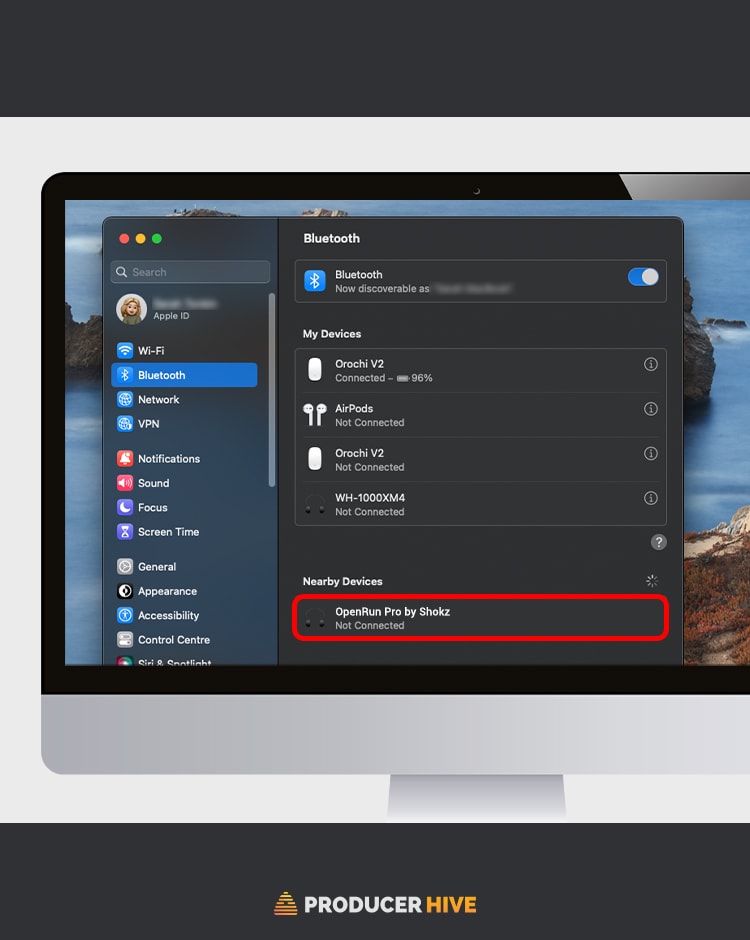
- Select Bluetooth.
- Click on the headphones to connect. The Shokz LED will flash blue with a voice confirmation saying ‘Connected.’



To Multiple Devices
One of the unique functions of Shokz headphones is the ability to pair to two devices. You won’t be able to listen to both music simultaneously, but you can switch between the two very quickly!
To enable multipoint pairing of your Shokz or Aftershokz headphones, follow these steps:
- Ensure the Shokz or Aftershokz headphones pairing mode is enabled.
- Hold the Multifunction button and Volume+ button for 2-3 seconds. The Shokz voice prompt will say, ‘Multipoint Enabled.’
- Pair your first device using the instructions above. The voice will say, ‘Connected.’
- Switch off your headphones and re-enter pairing mode
- Pair the second device, and you will hear a voice confirmation of ‘Device Two Connected.’
How To Reset Shokz Headphones
There might be occasions when Shokz won’t pair with your device. Generally, a quick reset of the headphones will fix the issue.
To perform a reset, complete these steps:
- Remove your Shokz from your device Bluetooth list (if you’ve paired with multiple devices, remove them from both).
- Enter pairing mode (press and hold the Volume+ button for 5-7 seconds).
- When the voice command confirms you are in pairing mode, hold the Multifunction, Volume+, and Volume- buttons simultaneously for 3-5 seconds.
- The headphones will beep, and you will feel a light vibration.
- Turn your headphones off, and the reset is complete.


Before you head off, check out our guide to the 7 Best Bone Conduction Headphones (With Microphone)!


Thank you. Perfect.